
Platform Configuration
Branding, languages, money, and the platform-level credentials your customers inherit.
Settings
Configuration → Settings is global application configuration, in three tabs: General, Firebase and Advanced.
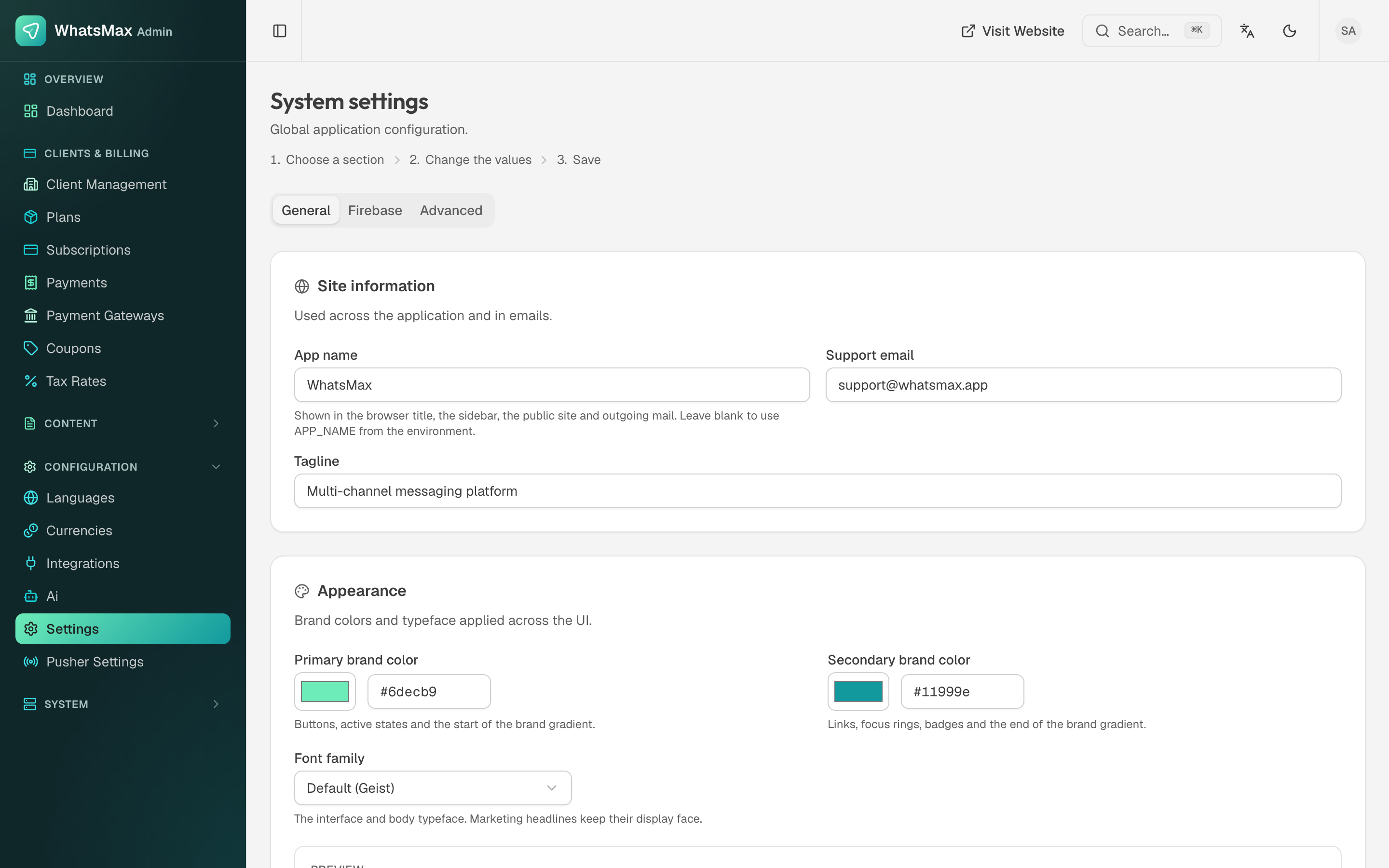 Site information and brand appearance.
Site information
- App name — shown in the browser title, the sidebar, the public site and outgoing mail. Leave it blank to fall back to
APP_NAMEfrom the environment. - Support email — where customers are told to write.
- Tagline — the one-liner under the name.
Appearance
- Primary brand colour — buttons, active states, and the first stop of the brand gradient.
- Secondary brand colour — links, focus rings, badges, and the end of the gradient.
- Font family — the interface and body typeface. Marketing headlines keep their display face.
A live preview sits under the fields. Set these three together with your logo and the whole product — app, admin panel and public site — is yours.
Check contrast when you change the brand colours
The default pair is chosen so text stays readable on both light and dark grounds. A very light primary makes white button text unreadable; check the preview in both themes before saving.
Firebase and Advanced
Firebase holds the credentials for web push notifications. Advanced carries registration toggles and the remaining platform defaults — whether public registration is open, the default locale and currency for new accounts, and similar switches.
Languages
Configuration → Languages enables and disables the UI locales your customers can choose.
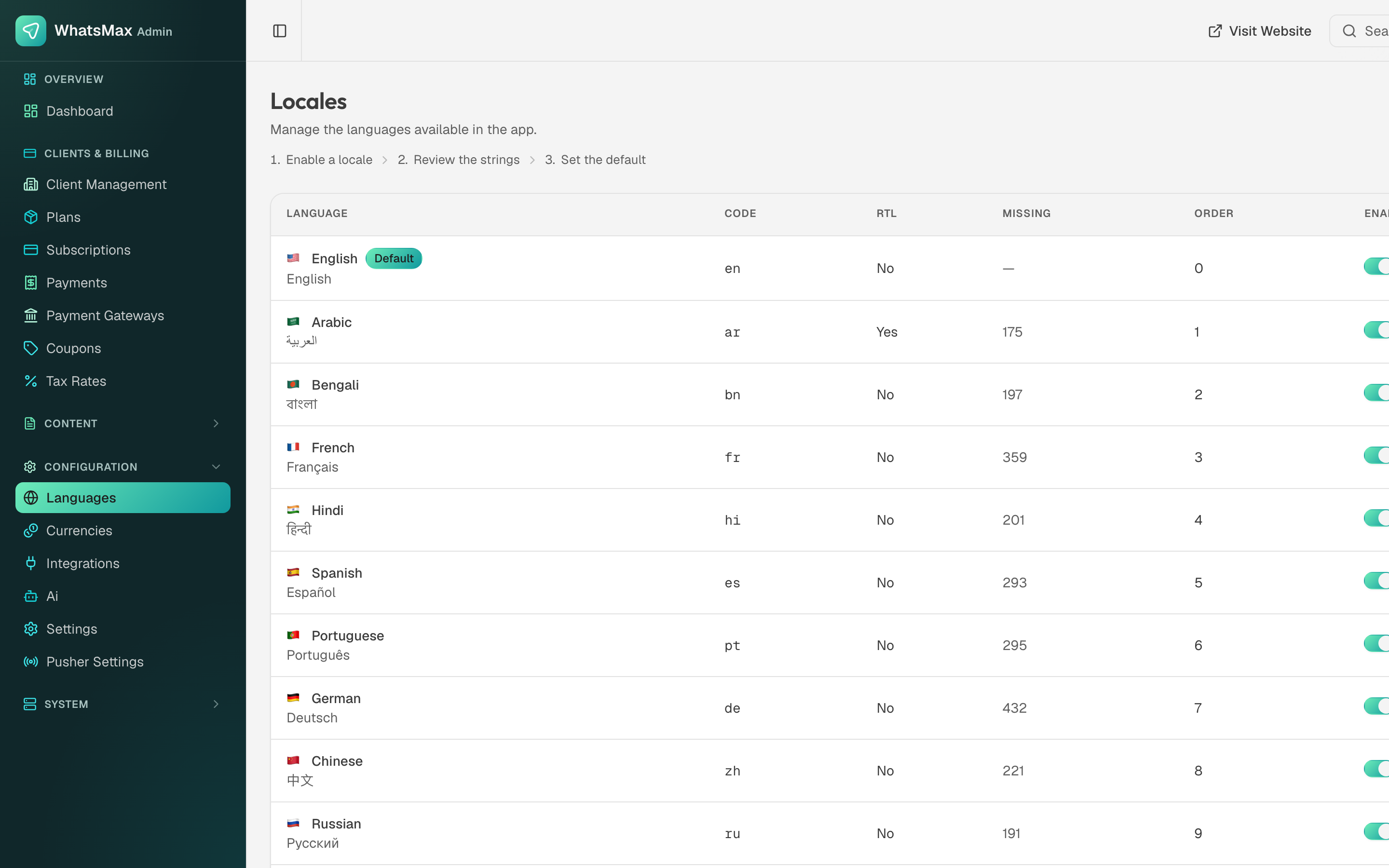 Available languages, with RTL support.
The app is fully translatable, including right-to-left languages (the RTL column). The Missing column counts untranslated strings per locale — a language with hundreds of missing strings will show English in those places. Enable only the ones you actually maintain: a half-translated locale looks worse than an English-only product. The Default badge marks the locale new accounts start in, and Order controls the order of the language picker.
Currencies
Configuration → Currencies controls which currencies plans can be priced and displayed in.
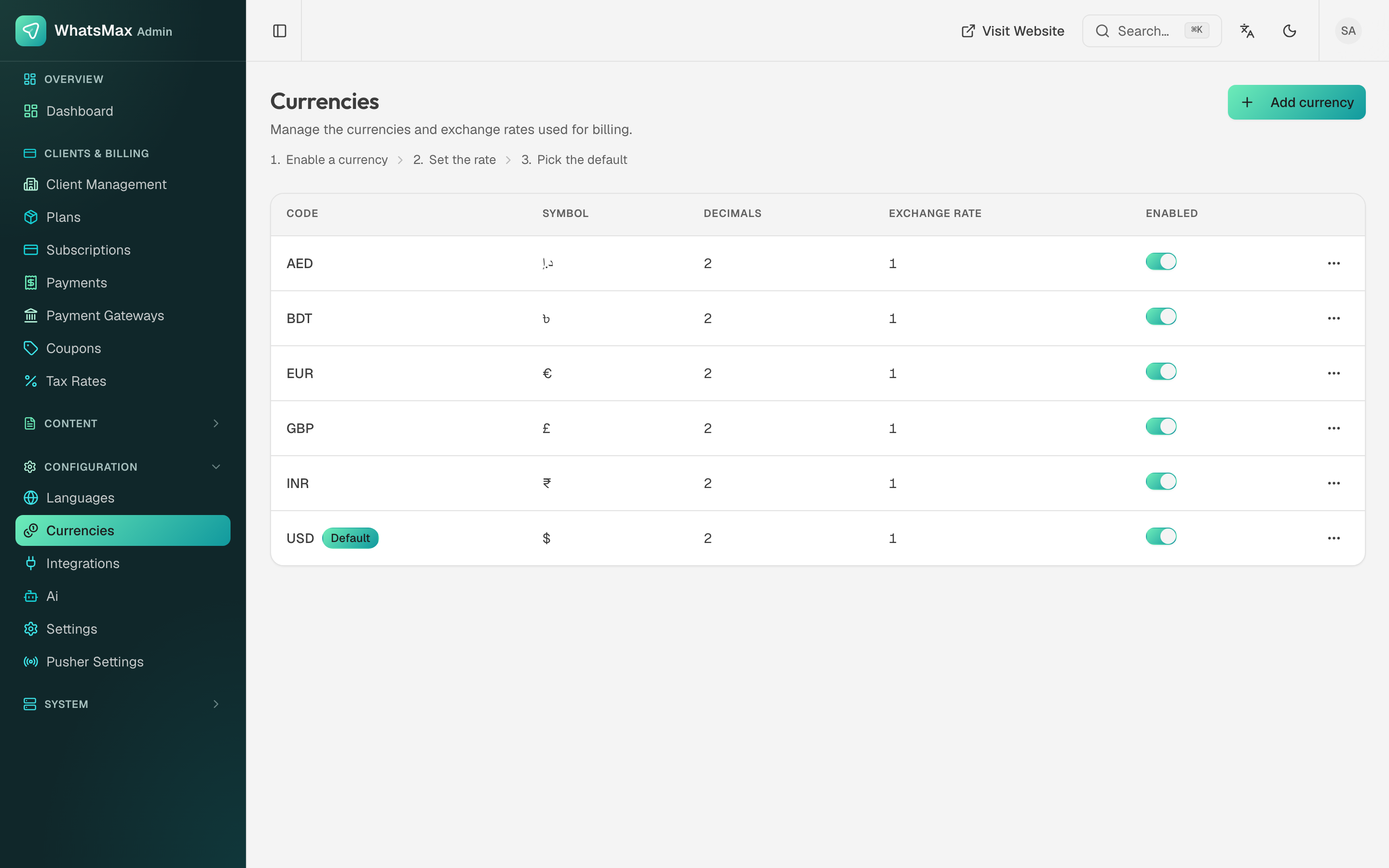 Enabled currencies with their symbols and rates.
Each row carries the code, symbol, number of decimals and the exchange rate against your default currency — the one marked Default. Customers pick their display currency in Account → Settings; the actual charge still happens in whatever currency your gateway is configured for, so keep the two aligned.
Exchange rates are values you maintain
They do not update themselves. A rate left at 1 means prices convert one-for-one, which is almost never what you want. Set real rates, or price in a single currency and leave the rest disabled.
Integrations
Configuration → Integrations holds the platform-level OAuth apps and service credentials that every workspace shares — Meta (WhatsApp, Messenger, Instagram), LinkedIn, TikTok, X, YouTube, Google Places for the lead scraper, and the optional Qdrant vector store.
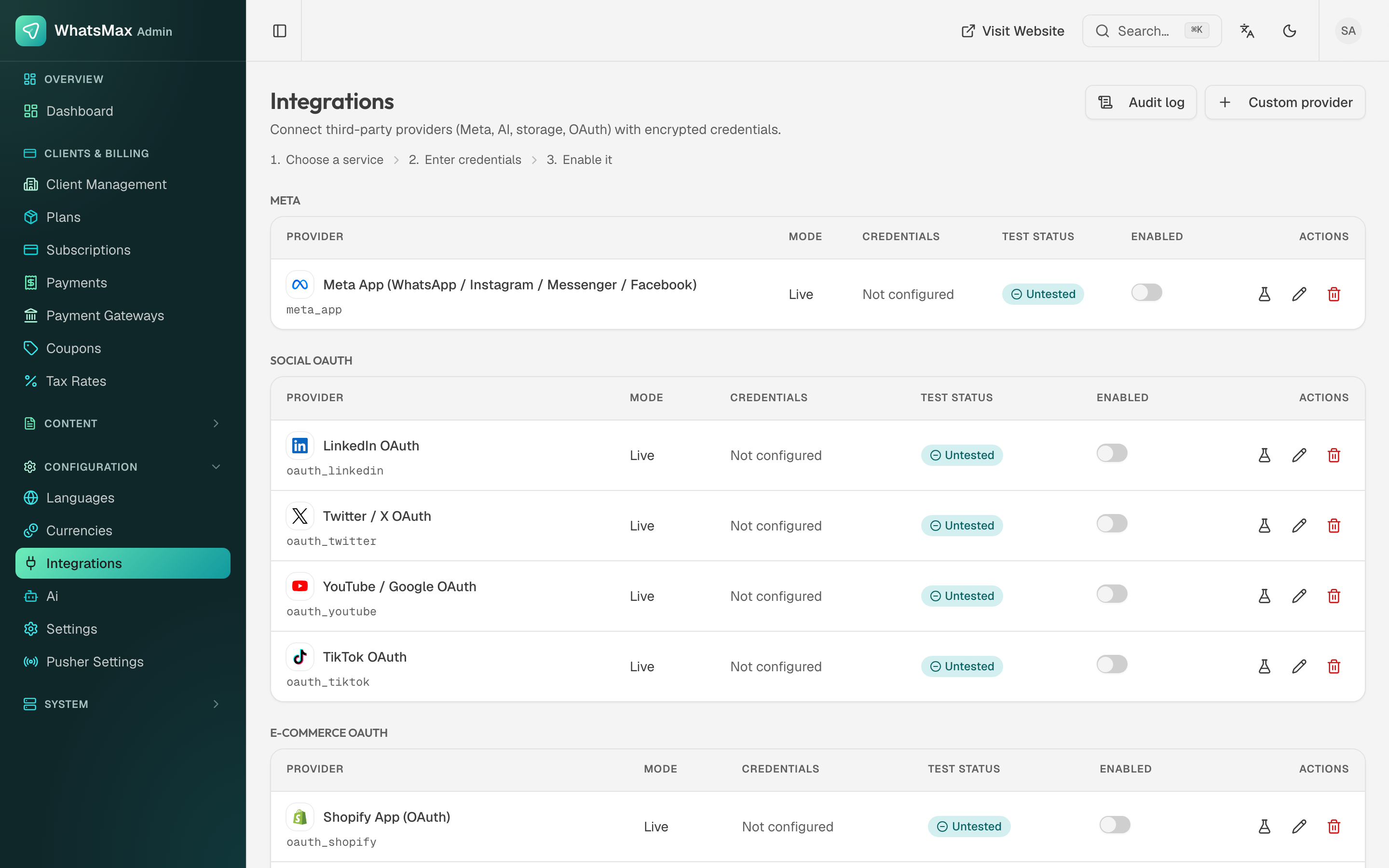 One credential set per provider, shared by all tenants.
This is the split that makes the SaaS model work: you register the developer apps once, your customers just click Connect and authorise. Full per-network instructions are in Social Media and WhatsApp.
All credentials entered here are encrypted at rest with APP_ENCRYPTION_KEY. There is a dedicated Integrations audit log recording who changed which credential.
AI Dashboard
Configuration → AI is platform-wide AI health and spend.
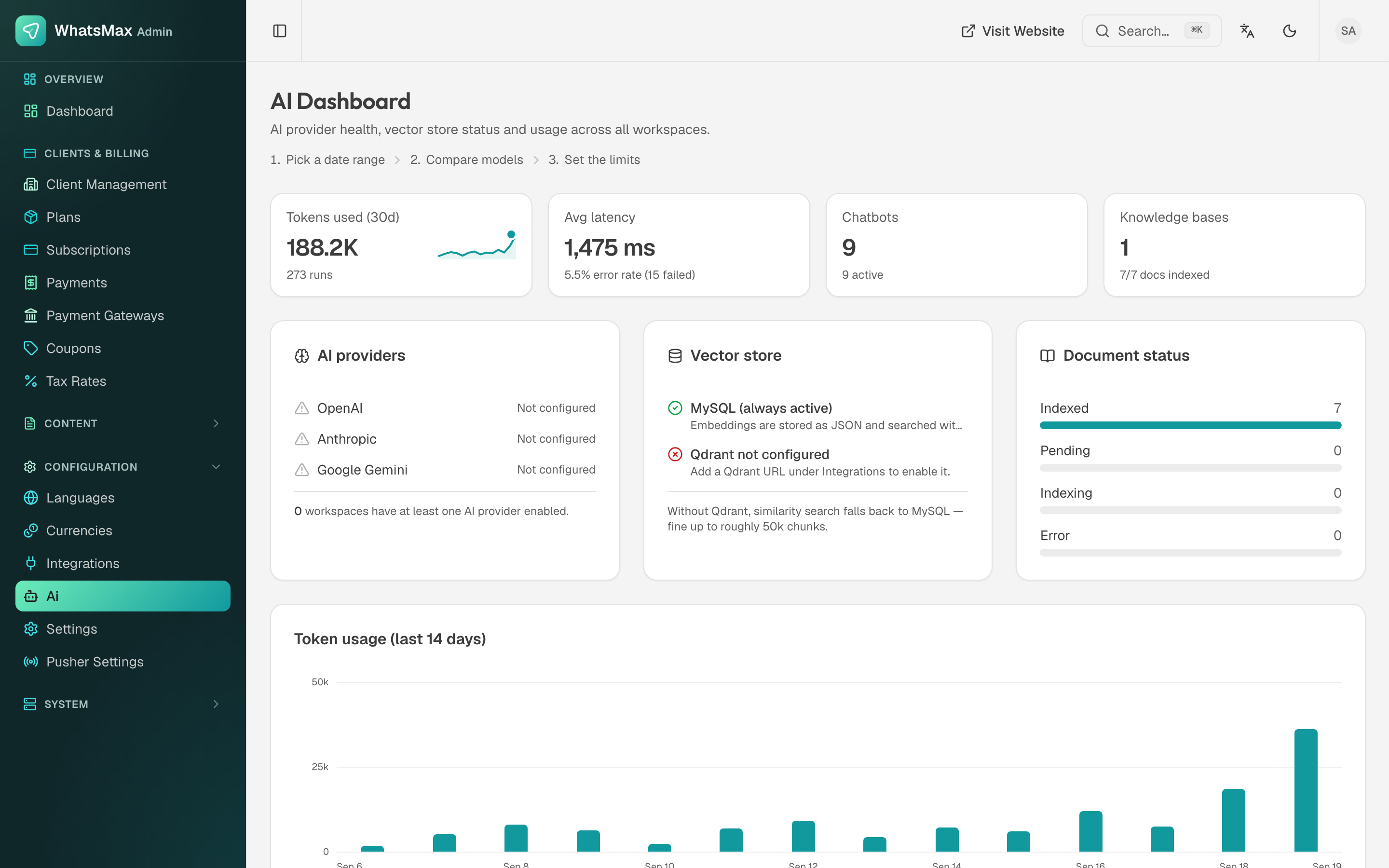 Provider status, vector store, document indexing and token usage across every tenant.
- Tokens used, runs and average latency with an error rate — a rising error rate usually means a rate-limited or out-of-credit provider key.
- AI providers — OpenAI, Anthropic and Google Gemini, each showing whether a platform key is configured, plus how many workspaces have their own.
- Vector store — MySQL is always active and stores embeddings as JSON, which is fine up to roughly 50k chunks. For more, configure a Qdrant URL under Integrations and similarity search moves there.
- Document status — indexed / pending / indexing / error across all knowledge bases. Documents stuck in
pendingmean the worker is not running. - Token usage over the last 14 days.
Per-tenant caps are set on the plan; the workspace-facing view is Reports → AI.
Pusher
Configuration → Pusher Settings manages the realtime credentials. The browser-side values are build-time environment variables, so read Realtime before changing anything here.