
Workspaces & Team
A workspace is the container for everything: channels, contacts, campaigns, automations, reports. One customer account can hold several workspaces, and data never leaks between them.
Workspaces
Account → Workspaces.
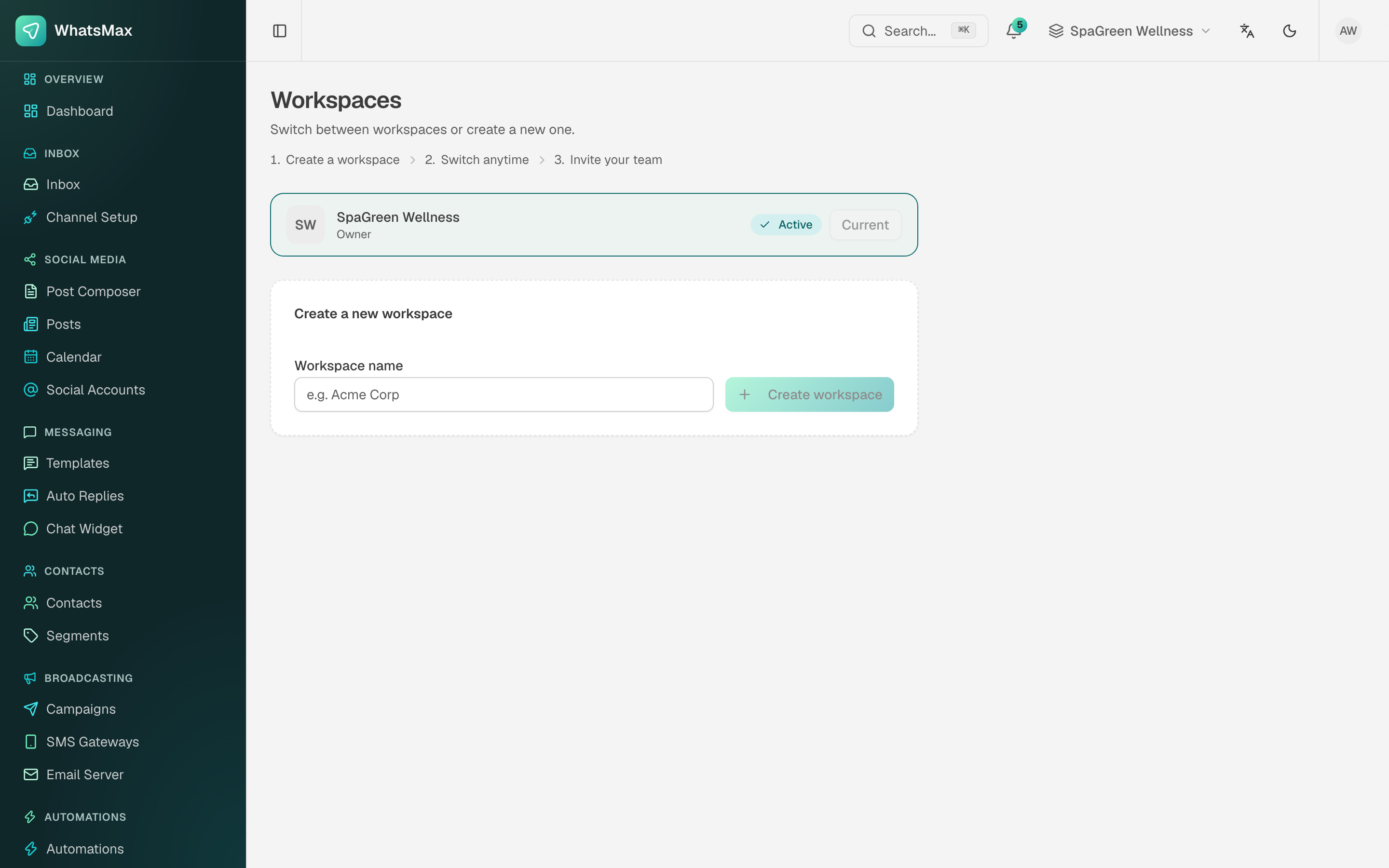 Workspace list — the current one is marked, new ones are one field away.
- The workspace switcher in the top bar changes which workspace you are looking at. Every screen in the app follows it.
- Create a new workspace by name. How many a customer may create is a plan limit you set.
- Each workspace has its own name, default language and currency in Account → Settings.
Typical reasons a customer runs more than one: separate brands, separate countries, or an agency running each client in its own space.
Workspaces are isolated on purpose
Contacts, conversations and templates do not move between workspaces, and there is no cross-workspace search. If a customer wants one shared contact list, they want one workspace with tags — not several workspaces.
Team
Account → Team controls who can open the current workspace.
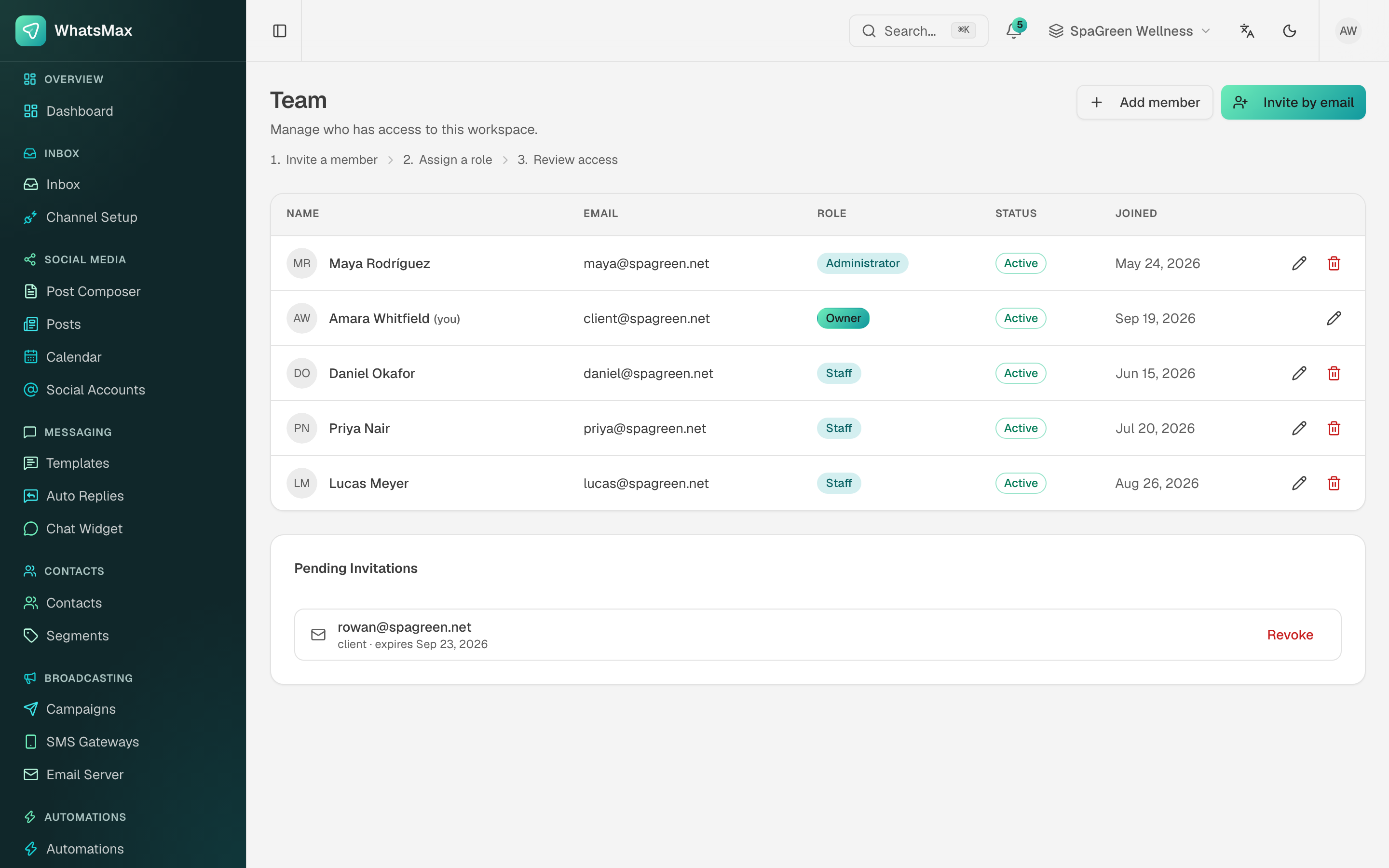 Members, their roles, and invitations still waiting to be accepted.
| Role | Can do |
|---|---|
| Owner | Everything, including billing and deleting the workspace. One per workspace — the account that created it. |
| Administrator | Everything operational: channels, campaigns, automations, team management. Not the subscription. |
| Staff | Day-to-day work — inbox, contacts, campaigns — without the destructive settings. |
Adding people
- Invite by email sends an invitation link. The row stays under Pending Invitations with its expiry until it is accepted; Revoke kills it.
- Add member creates the account directly, for when you would rather set the password yourself.
Seats count against the workspace's plan limit, so an invitation can be refused because the plan is full — raise the limit on the plan or upgrade the customer.
Settings
Account → Settings holds three blocks:
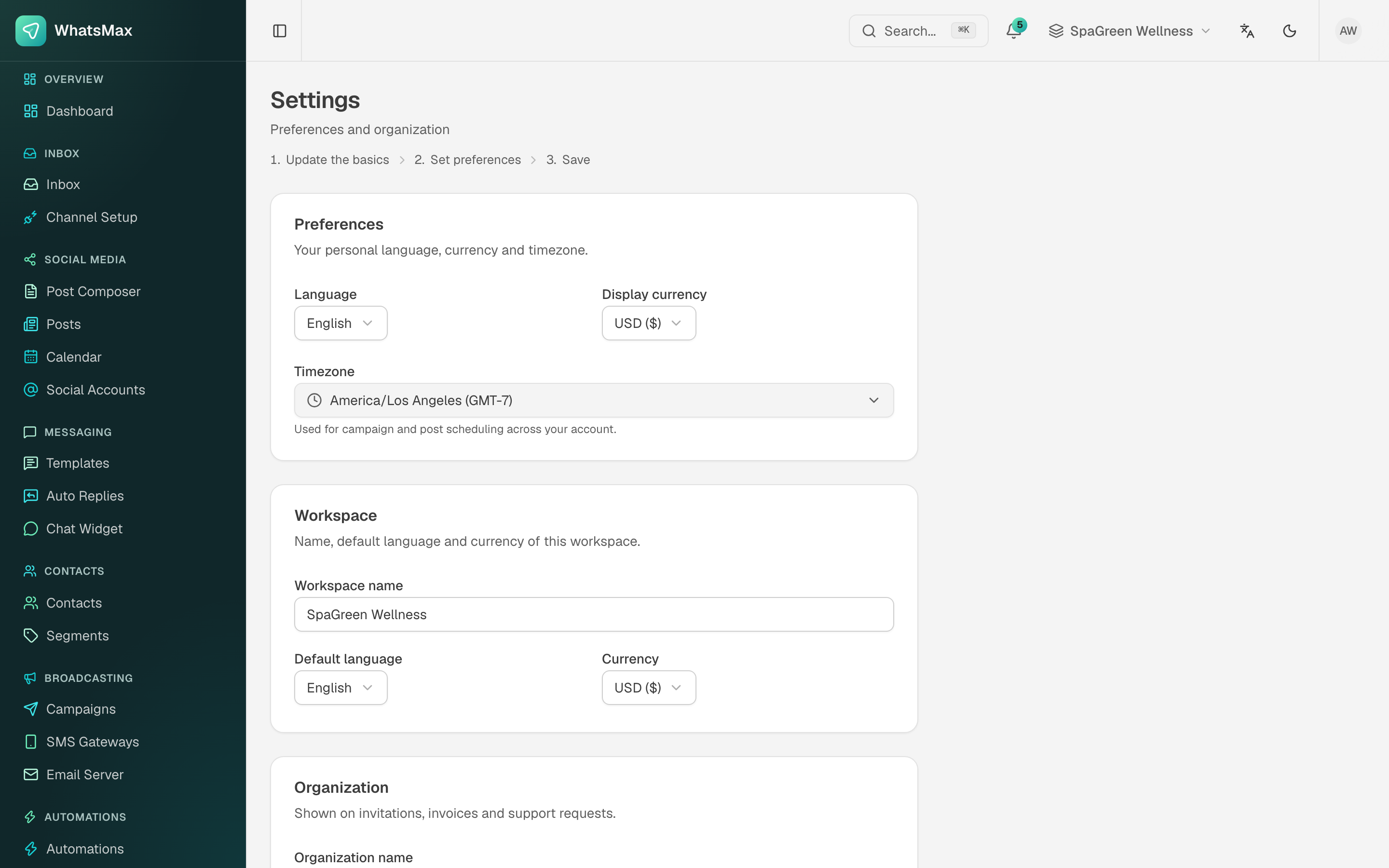 Personal preferences, workspace defaults and organisation details.
- Preferences — the signed-in user's own language, display currency and timezone. The timezone is what campaign and post scheduling is interpreted in, so it is worth getting right before anyone schedules anything.
- Workspace — workspace name, default language and currency.
- Organisation — the legal name and details shown on invitations, invoices and support requests.
Personal account details live under the avatar menu in Profile, on five tabs:
| Tab | Holds |
|---|---|
| Profile | Photo, name, email, language and timezone. |
| Password | Change the password. |
| Security | Two-factor authentication. |
| Sessions | Devices currently signed in — sign out the ones you do not recognise. |
| Account | Account-level actions, including deletion. |
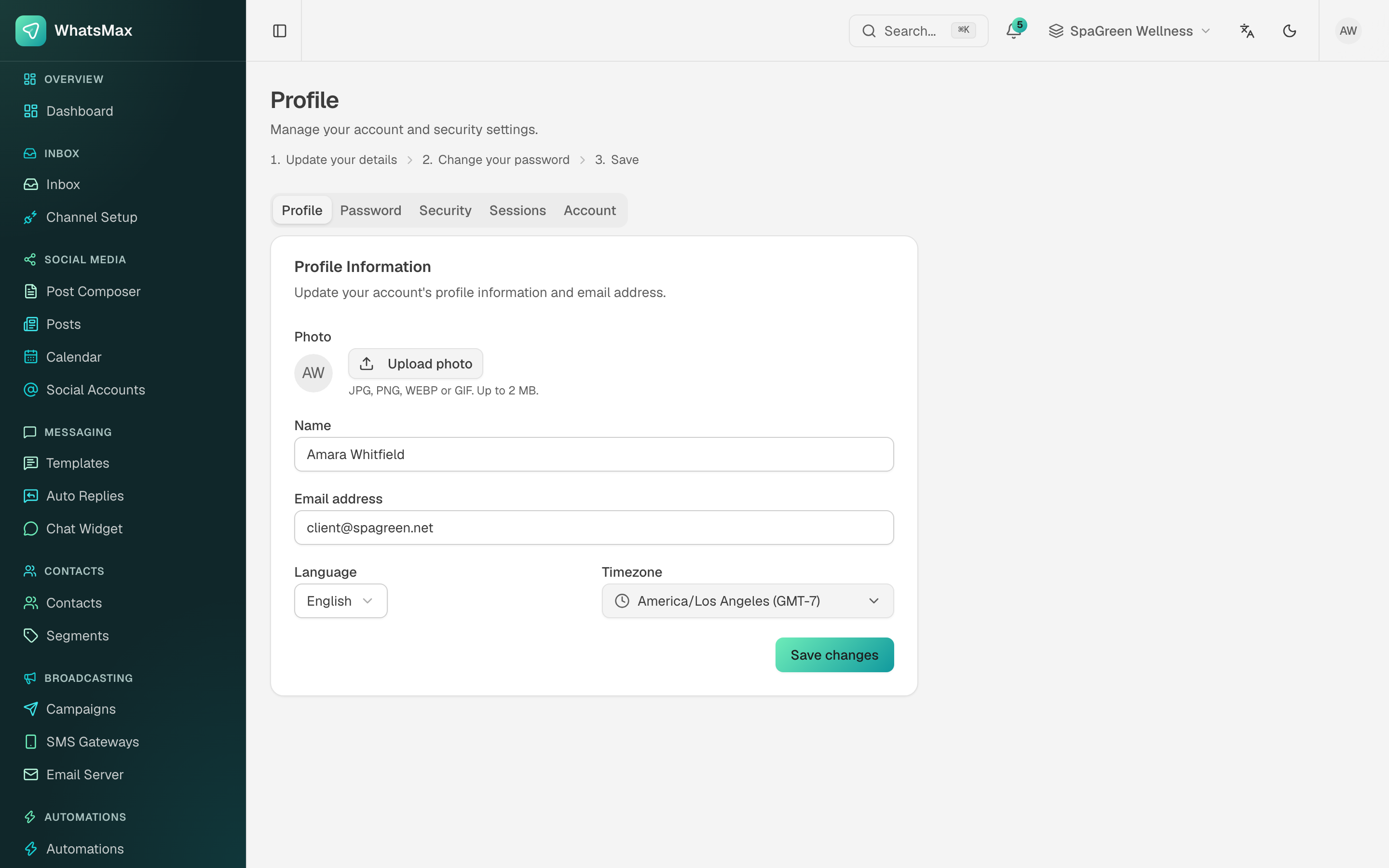 The personal profile screen.
Notifications
Notifications is the account's own feed: failed automations, failed sends, new messages and other events, newest first, with unread markers and Mark all read.
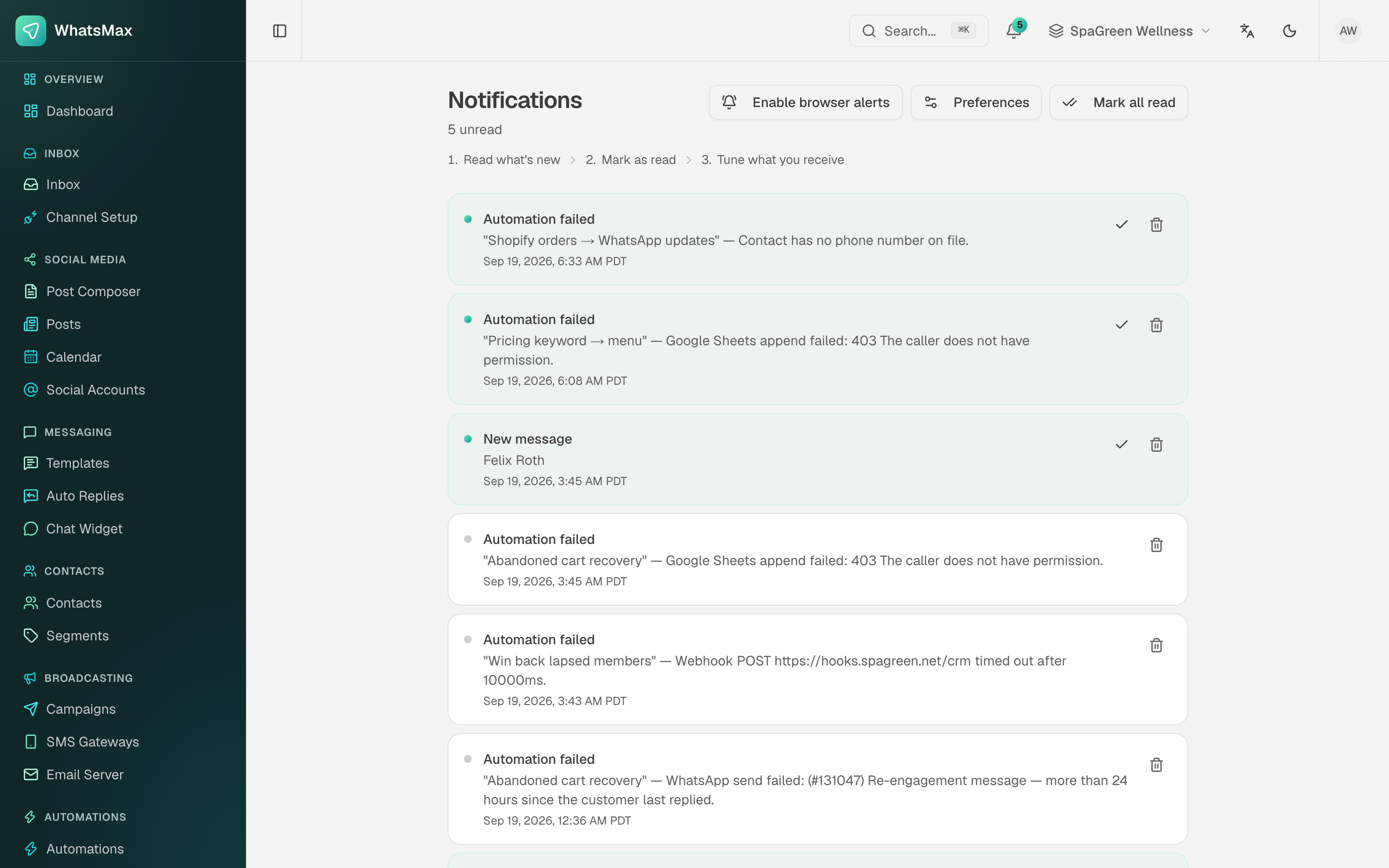 The notification feed — this is usually where a broken automation announces itself first.
Enable browser alerts turns on web push for this browser (it needs Firebase configured in Admin → Settings → Firebase), and Preferences controls which events reach you and by which channel.
Audit log
Account → Audit Log records who did what inside the workspace — sign-ins, channel credential changes, team changes, campaign launches, deletions. It is the first place to look when someone asks "who turned that off?".
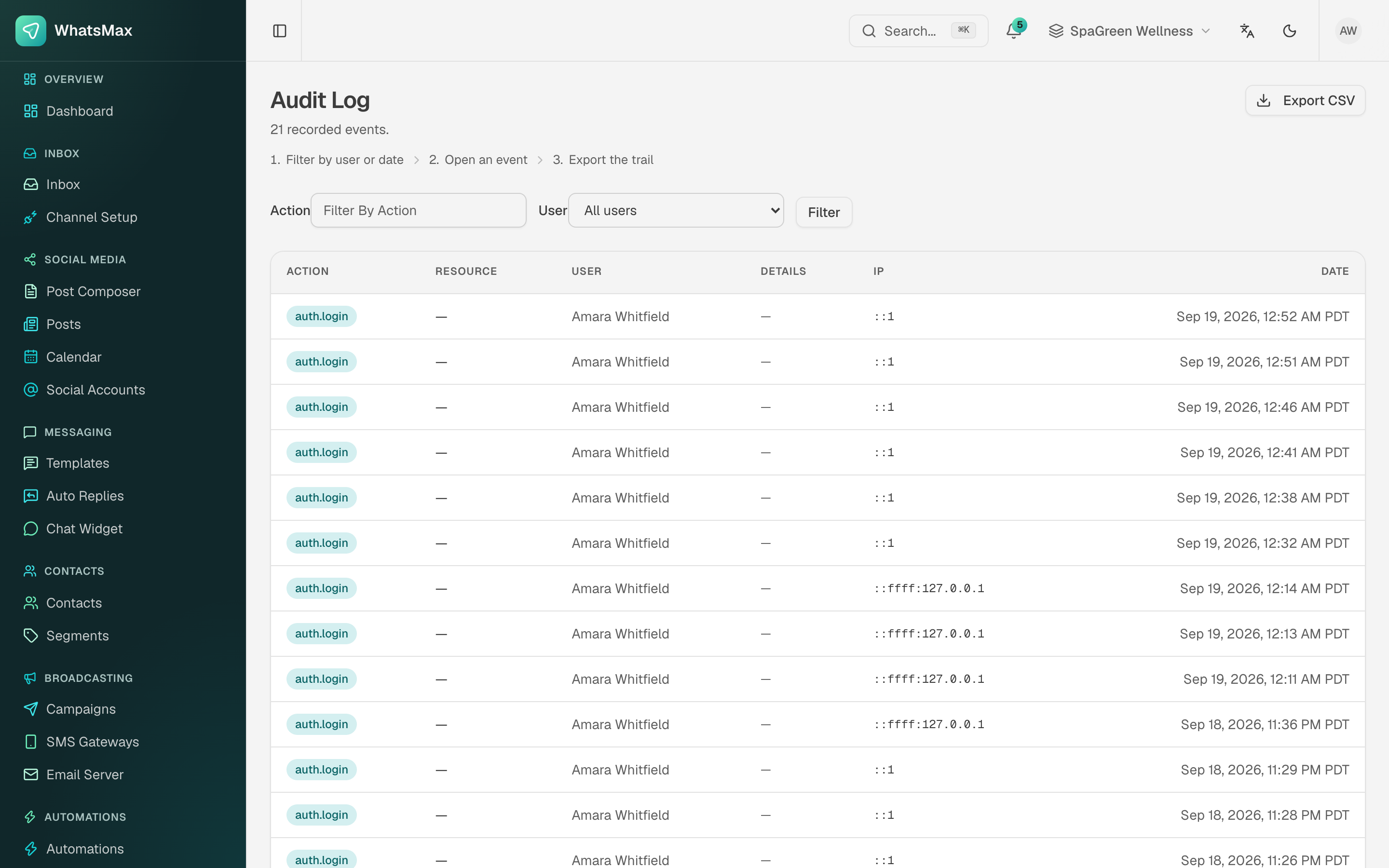 Action, resource, user, IP and timestamp for every recorded event.
Filter by action or user, and Export CSV for the whole trail.
The admin panel has its own separate audit log for platform-level actions.