
System, Staff & Health Checks
Who on your side can do what, and whether the machinery is running.
Roles & permissions
System → Roles & Permissions defines admin roles and what each may do.
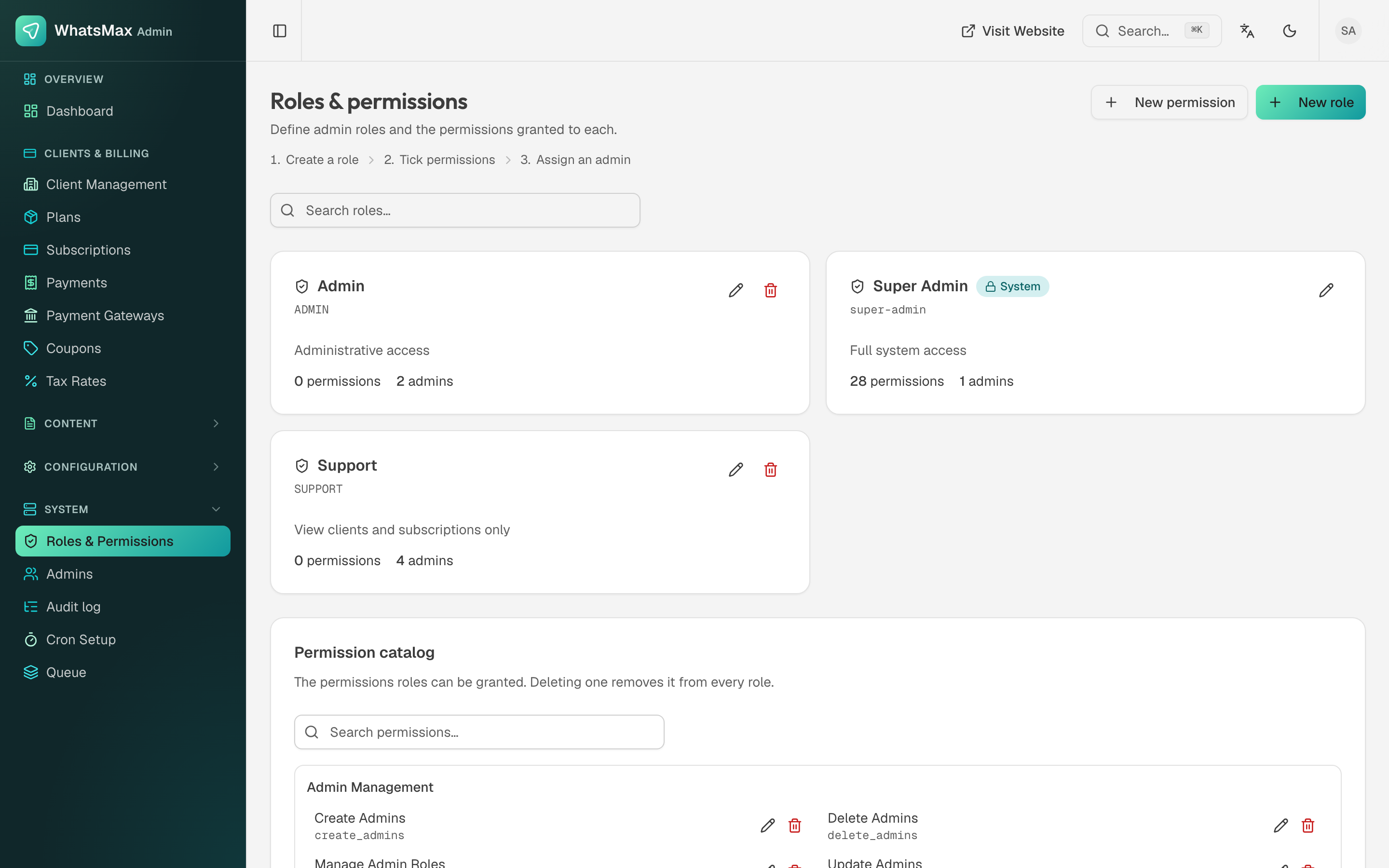 Roles with their permission counts, above the full permission catalog.
- Super Admin is a system role with every permission. It cannot be deleted.
- Create your own roles — a
Supportrole that can view clients and subscriptions but not touch gateways or plans is the usual second role. - The permission catalog below the roles lists every permission, grouped by area (
create_admins,view_clients,manage_integrations, …). Deleting a permission removes it from every role, so leave the catalog alone unless you are extending the product.
Permissions are enforced in the navigation too: a staff member simply does not see the sections they cannot use.
Admin users
System → Admins holds your staff accounts and the role each carries.
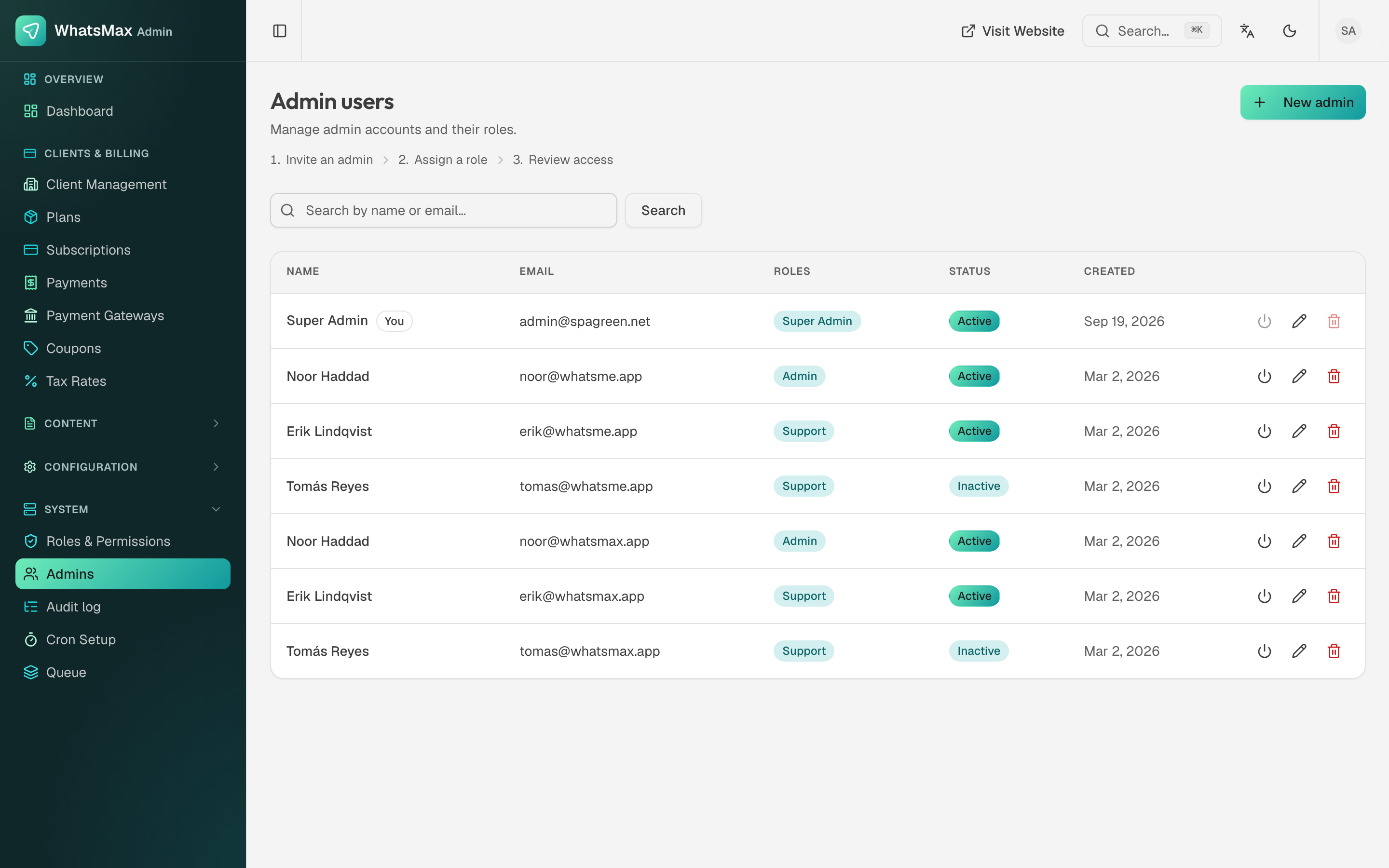 Admin staff accounts.
Give every person their own account. Shared logins make the audit log worthless, and offboarding impossible.
Audit log
System → Audit log records admin-side actions — who changed a plan, a gateway credential, a client's status, a role.
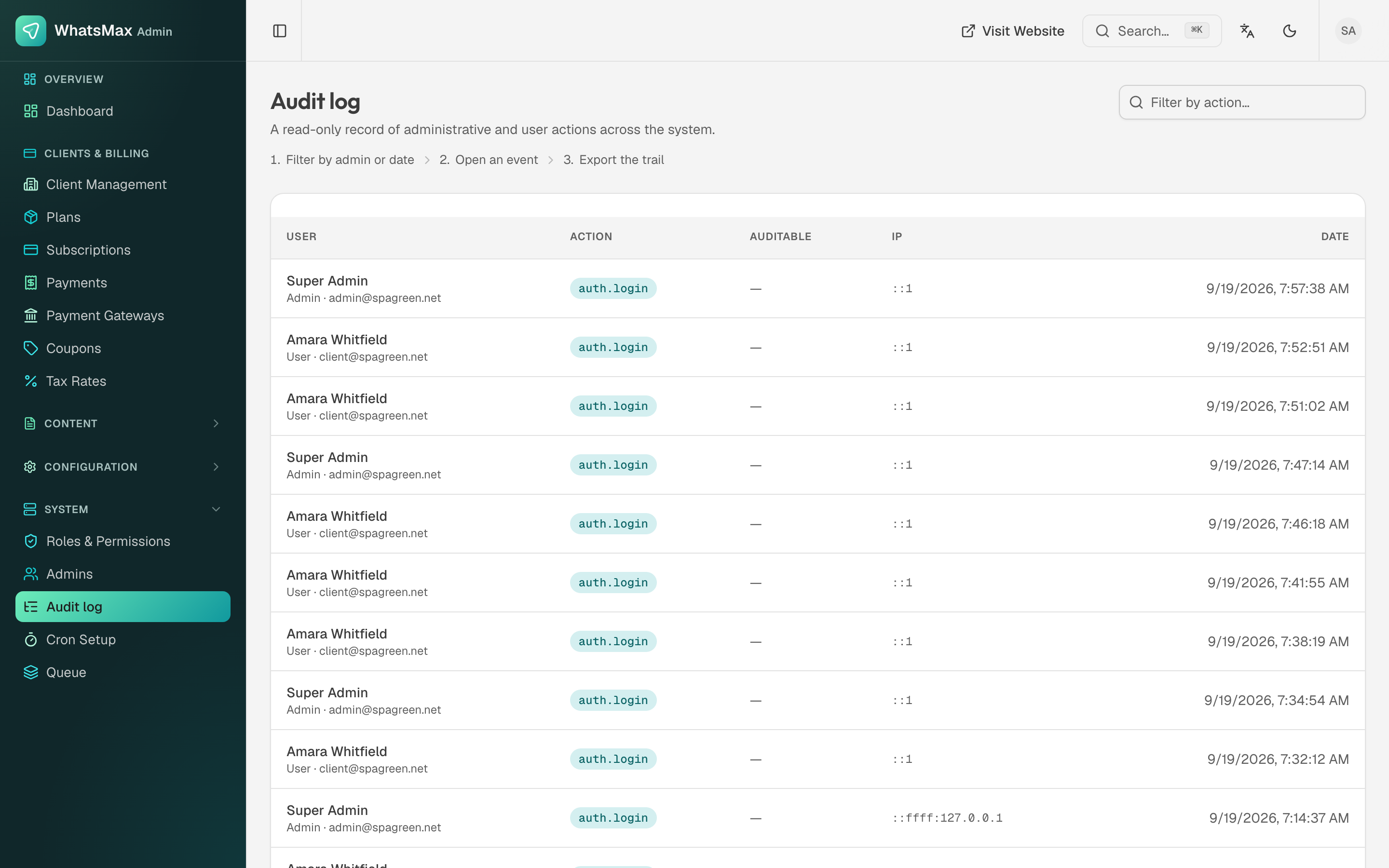 Platform audit trail.
Workspace-level activity has its own separate log inside the client app (Account → Audit Log), and credential changes also appear in the Integrations audit log.
Queue Monitor
System → Queue is the health of everything that happens in the background.
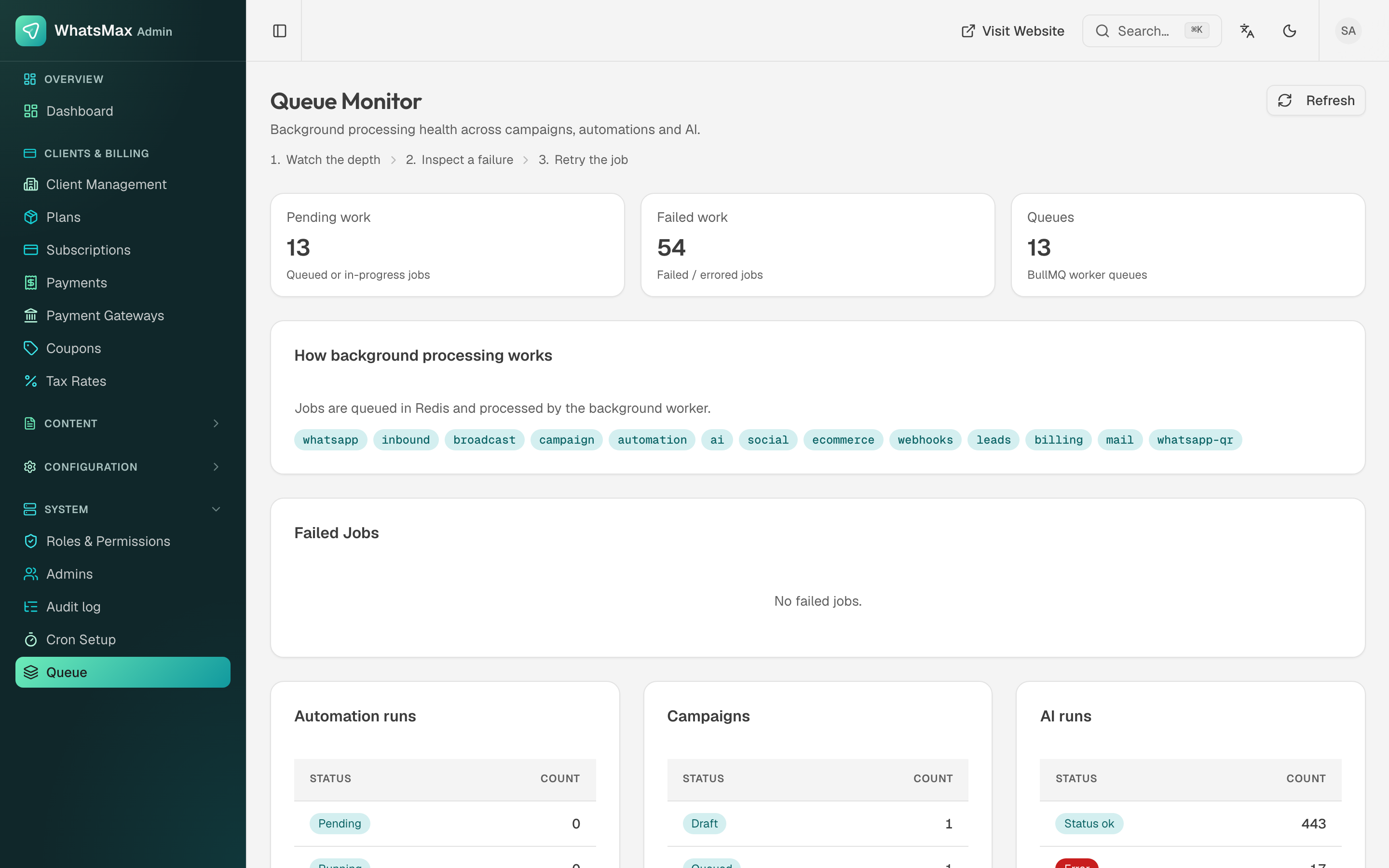 Pending and failed work, the queue list, and per-feature run states.
- Pending work — queued or in-progress jobs. A number that only grows means the worker is down or too slow.
- Failed work — errored jobs. The Failed Jobs list below shows them with their errors, and lets you retry.
- Queues — the BullMQ queues themselves:
whatsapp,inbound,broadcast,campaign,automation,ai,social,ecommerce,webhooks,leads,billing,mail,whatsapp-qr. - Status tables for automation runs, campaigns and AI runs.
Jobs are queued in Redis and processed by the worker process. If this page cannot load at all, Redis is unreachable — check REDIS_URL and that the Redis service is running.
Cron Setup
System → Cron Setup shows the scheduler heartbeats: the recurring tasks and when each last ran.
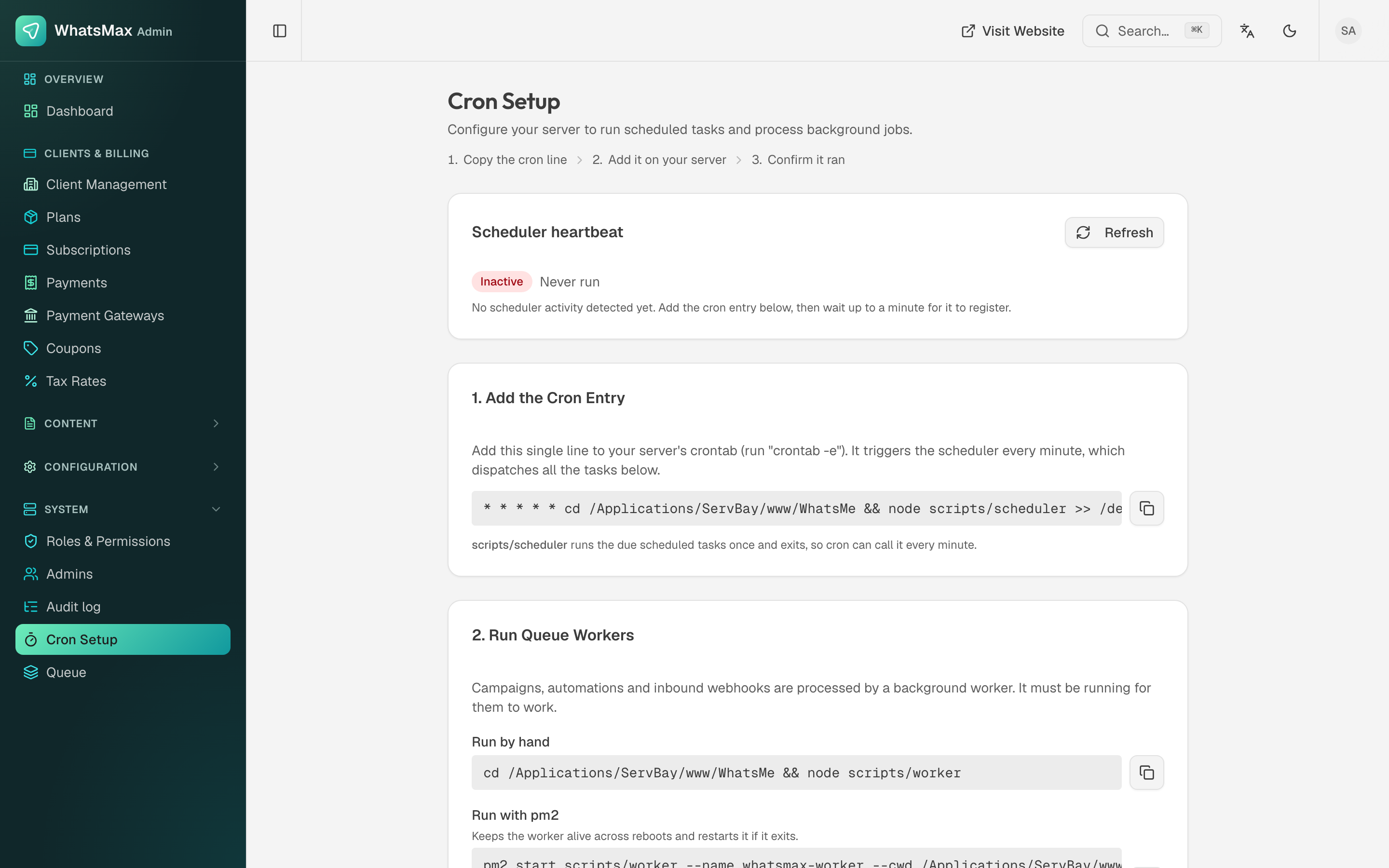 Scheduler heartbeats.
A stale heartbeat means the scheduler process is not running, and scheduled campaigns, scheduled social posts and periodic reconciliation are all silently not happening.
The two-minute health check
After every deploy, update or reboot:
- System → Queue — pending work draining, failed work not climbing.
- System → Cron — heartbeats recent.
pm2 status—whatsmax-webandwhatsmax-workerbothonline, andcrontab -lshowing the scheduler line.
If all three look right, the platform is working. If one is wrong, Troubleshooting starts there.