Automations
Automations run workflows without human involvement: "when X happens, check Y, then do Z." Build them visually under Automations.
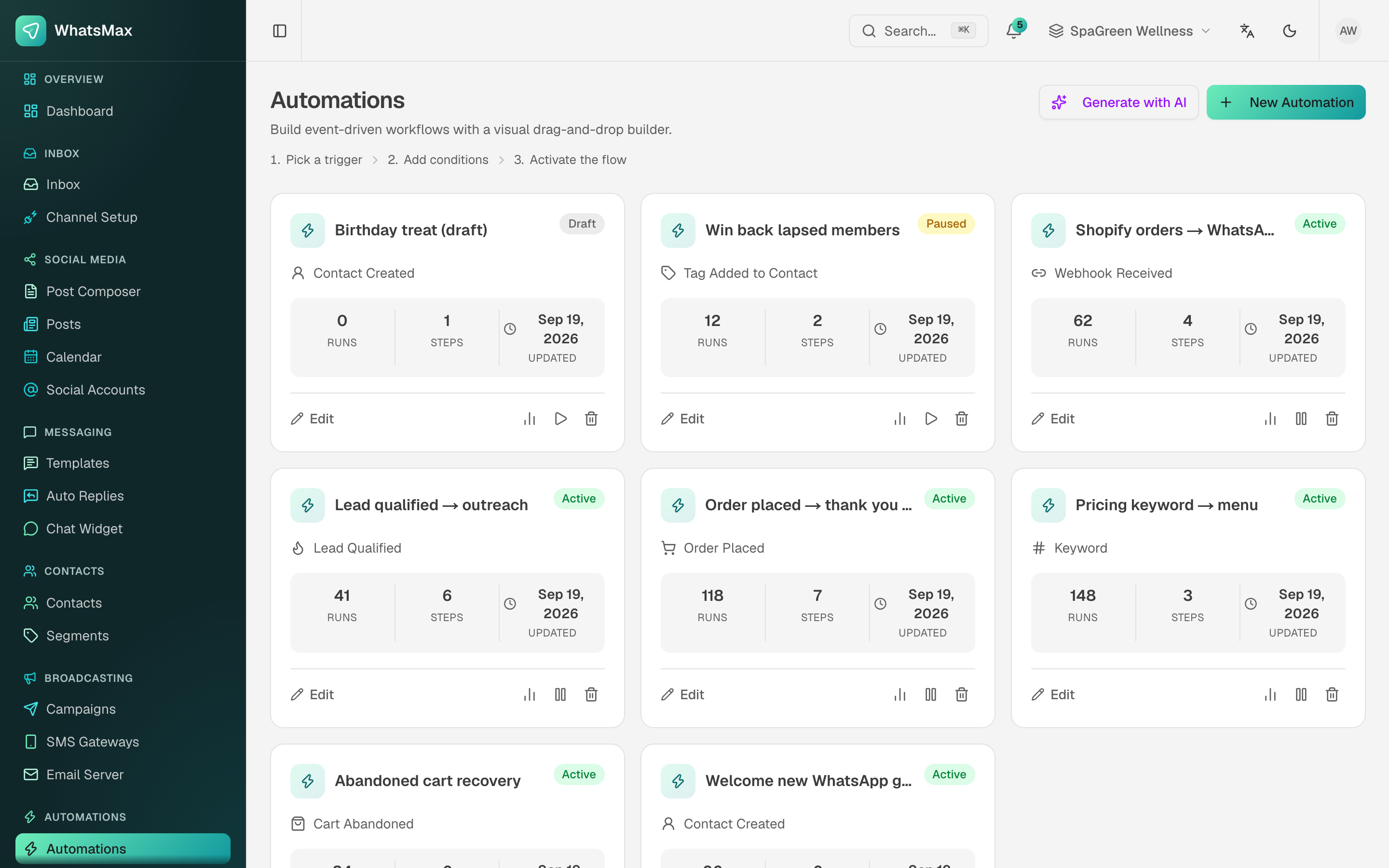 The automation list — each flow with its trigger, status and recent run count.
The builder
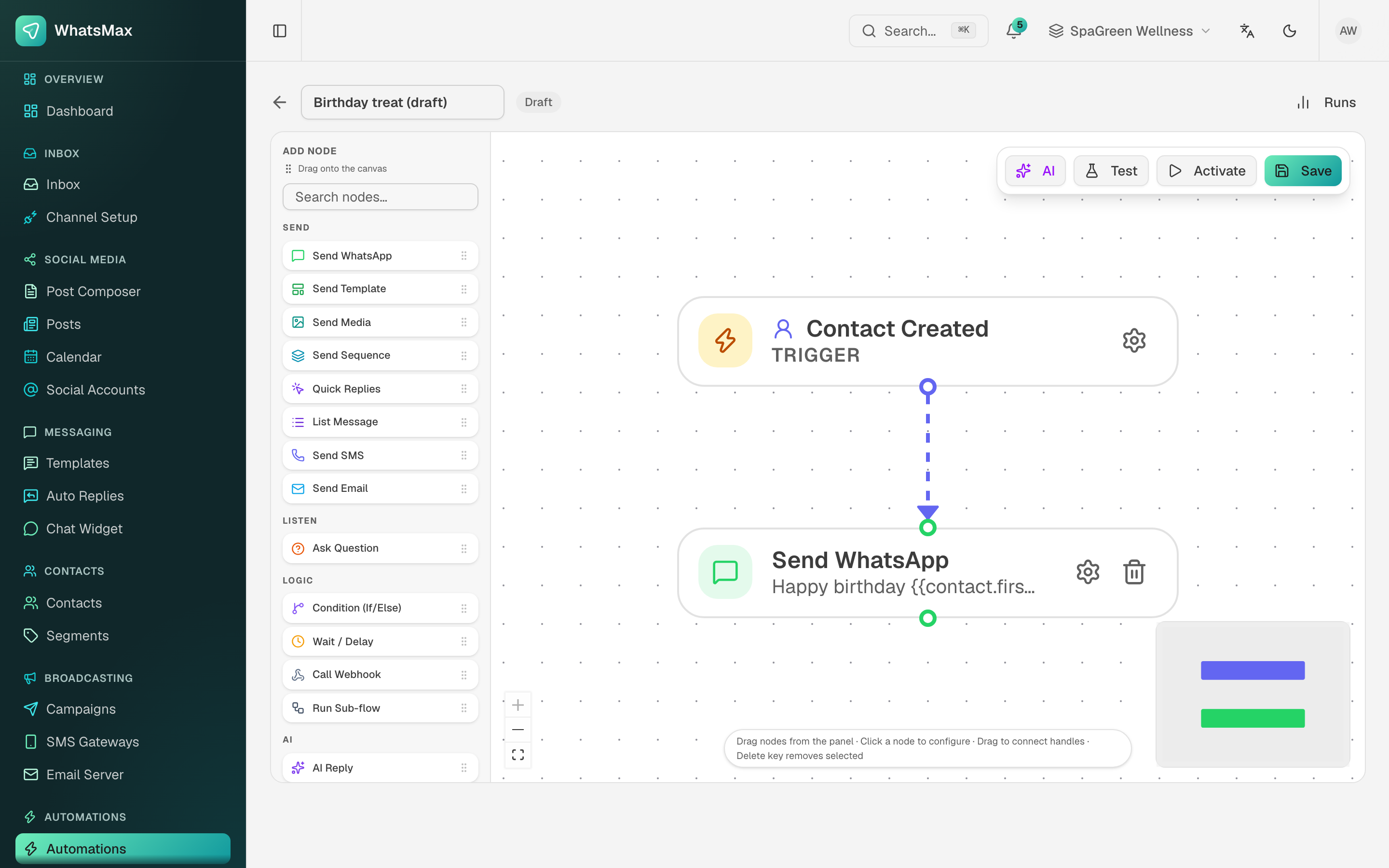 Drag a node from the palette onto the canvas, connect the handles, click a node to configure it.
The palette on the left is grouped by what a node does:
| Group | Nodes |
|---|---|
| Send | Send WhatsApp, Send Template, Send Media, Send Sequence, Quick Replies, List Message, Send SMS, Send Email |
| Listen | Ask Question — pause the flow and wait for the contact's answer |
| Logic | Condition (If/Else), Wait / Delay, Call Webhook, Run Sub-flow |
| AI | AI Reply — let a chatbot answer this step |
Toolbar, top right: AI (generate a flow from a description), Test (dry-run it), Activate / deactivate, and Save. Runs opens the execution history for this flow.
Building blocks
- Triggers start a run — an inbound message or keyword, a contact created or tagged, an e-commerce event (order created, cart abandoned), a schedule, or an incoming webhook (each automation gets a unique URL:
https://your-domain/api/webhooks/automation/{token}, shown on the trigger node — see Webhook automation for Shopify, WooCommerce and custom platforms). - Conditions branch the flow — contact attributes and tags, message content, time windows, segment membership.
- Actions do the work — send a WhatsApp template/SMS/email, add or remove tags, update attributes, assign the conversation, notify the team, call an external webhook, hand the conversation to an AI chatbot or a human.
- Delays — wait steps between actions (e.g. abandoned cart: wait 1 hour, then message).
AI generation
Click Generate with AI, describe the flow in plain language — "When a new contact is tagged 'trial', wait a day, then send the welcome template; if they don't reply in 3 days, notify sales" — and the builder generates the node graph for you to review and edit. Requires a configured AI provider.
Lifecycle
- Automations are draft until you activate them; deactivate any time.
- Runs are executed by the worker/scheduler processes — like campaigns, automations do nothing if those aren't running.
- Reports → Automations shows run volume, success rate, the completed / failed / waiting split and runs per automation. See Reports.
Recipes to copy
| Goal | Trigger | Flow |
|---|---|---|
| Welcome new contacts | Contact created | Send welcome template → tag welcomed. |
| Abandoned cart recovery | Cart abandoned (store connected) | Wait 1h → WhatsApp with cart link → wait 23h → email reminder. |
| After-hours autoresponder | Inbound message + time condition | Outside business hours → send "we'll reply tomorrow" → tag for morning follow-up. |
| Lead routing | Keyword trigger ("pricing") | Tag hot-lead → assign to sales → notify via webhook to Slack. |
| Review request | Order status → completed | Wait 2 days → send review-request template. |