
Admin Panel
https://your-domain/admin is your control room as the platform owner. It is a separate world from the client app: separate accounts, separate permissions, and cross-tenant visibility your customers never get.
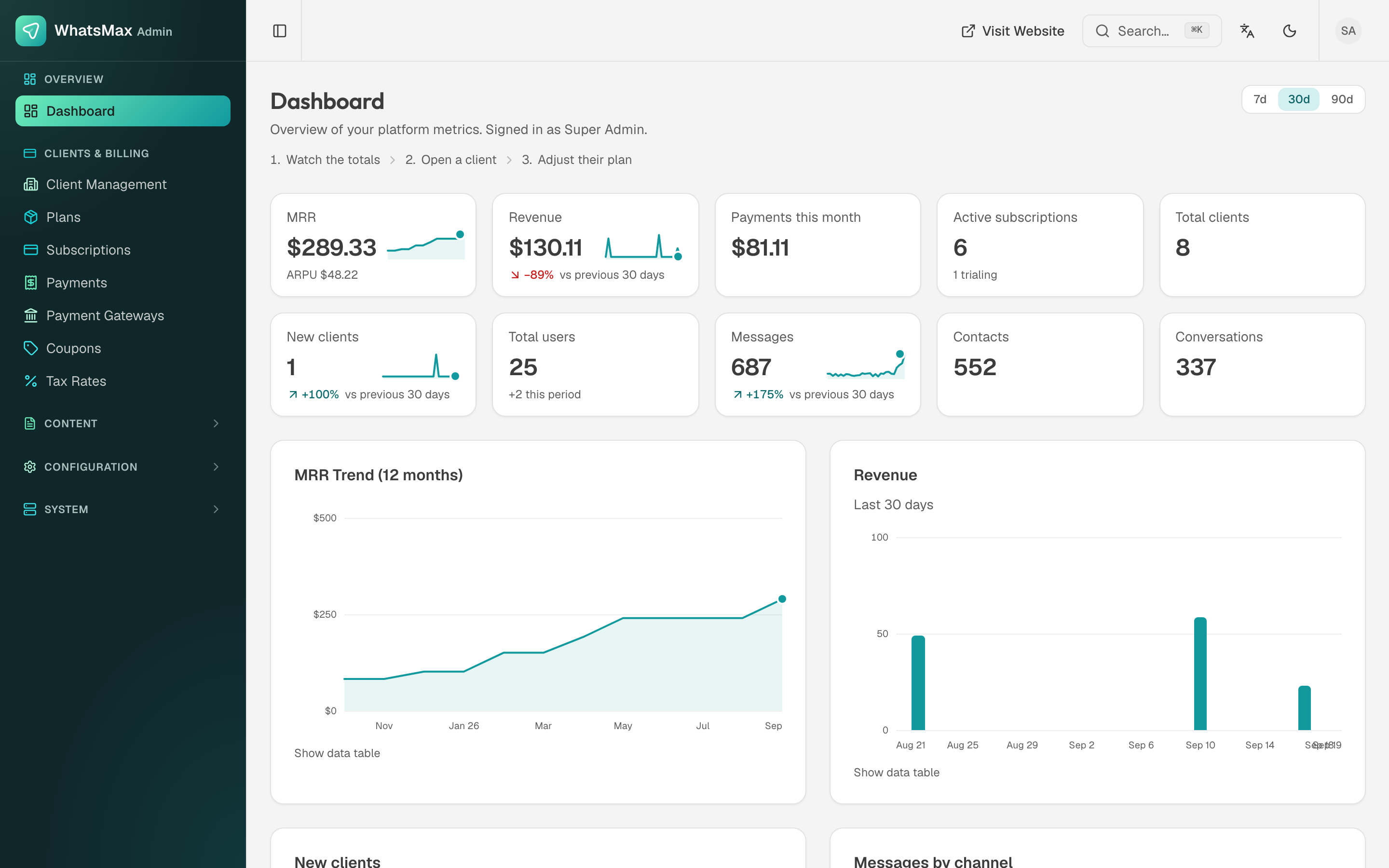 The admin dashboard — MRR, revenue, subscriptions and platform-wide activity.
Signing in
There is one login form for both sides, at /login. It checks the admin table first: an admin lands in the admin panel, a customer in their workspace. /admin/login simply redirects there.
The dashboard
Everything on it answers "is the business healthy?":
- MRR and ARPU, with the twelve-month MRR trend.
- Revenue and payments this month, against the previous period.
- Active subscriptions (including how many are trialing) and total clients.
- New clients, total users, messages, contacts and conversations across every tenant.
- Charts for revenue, new clients and messages by channel.
The range switch (7d / 30d / 90d) applies to the whole page.
The five sections
| Section | What lives there | Chapter |
|---|---|---|
| Clients & Billing | Clients, plans, subscriptions, payments, gateways, coupons, tax rates | Clients & Billing, Plans & Billing |
| Content | Site content, CMS pages, email system, support tickets | Content & Support |
| Configuration | Languages, currencies, integrations, AI, settings, Pusher | Configuration |
| System | Roles & permissions, admins, audit log, cron, queue | System & Health |
| License | Activation and updates | License |
Impersonation
From Client Management you can open a customer's workspace as them, which is the fastest way to answer "it does not work on my account". The session is marked as impersonation in the UI and recorded in the audit log.
A habit worth having
After every deployment or update, open System → Queue and System → Cron. Green there means campaigns, automations, AI and scheduled posts are all actually running. Almost every "nothing is sending" support ticket is answered on those two pages.