Platform Overview
A guided tour of the client application — what your customers see after they log in. Read it to learn the product yourself, and reuse it as the base for your own end-user help articles.
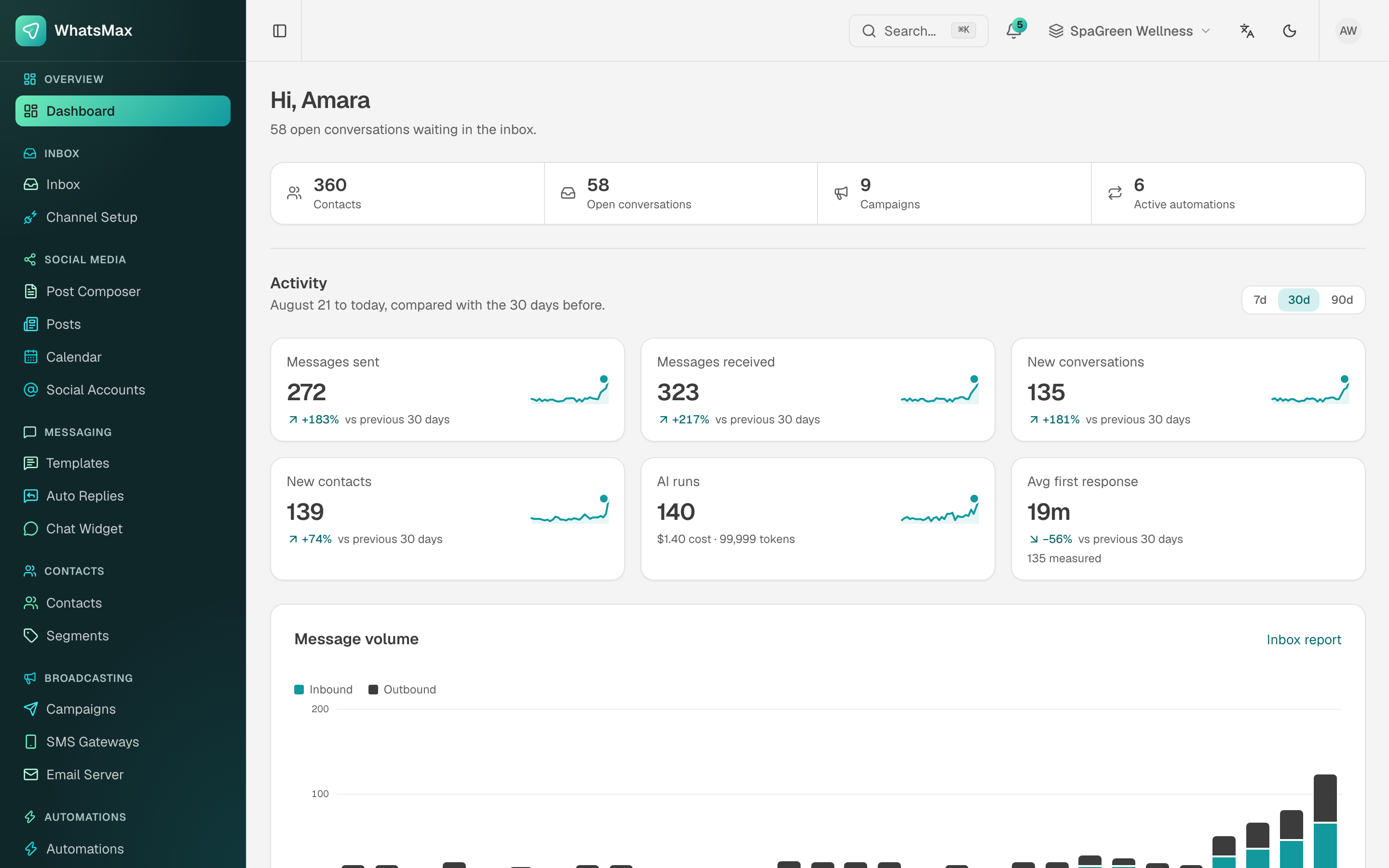 The workspace dashboard — volume, response time, AI spend and message mix for the selected period.
The workspace model
Everything a customer does lives inside a workspace: its own channels, contacts, campaigns, automations, reports and team. One account can own or belong to several workspaces (how many is a plan limit), and nothing is shared between them. The switcher in the top bar picks the active one. See Workspaces & Team.
The dashboard
The first screen after login answers "what happened while I was away":
- Counters — contacts, open conversations, campaigns, active automations.
- Activity for 7 / 30 / 90 days, each with the change against the previous period: messages sent and received, new conversations, new contacts, AI runs with their token cost, and average first response.
- Message volume — inbound vs outbound per day, with a link straight into the inbox report.
Feature map
The sidebar is grouped by job. Every group has a chapter:
| Group | Screens | Chapter |
|---|---|---|
| Inbox | Inbox, Channel Setup | Omnichannel Inbox |
| Social Media | Post Composer, Posts, Calendar, Social Accounts | Social Planner |
| Messaging | Templates, Auto Replies, Chat Widget | Templates & Auto Replies, Chat Widget |
| Contacts | Contacts, Segments | Contacts & Segments |
| Broadcasting | Campaigns, SMS Gateways, Email Server | Campaigns |
| Automations | Automations | Automations |
| E-commerce | Orders, Products, Stores | E-commerce |
| AI | Chatbots, Knowledge Bases, AI Providers | AI Chatbots |
| Leads | Lead Scraper, Lead Pipeline | Leads & Pipeline |
| Reports | Inbox, Campaigns, Automations, AI Usage, Social | Reports |
| Support | Support Tickets | Subscription & Support |
| Billing | Subscription, Billing, Plans | Subscription & Support |
| Developer | API Tokens, Webhooks, API Docs, Media Library | Developer API, Media Library |
| Account | Getting Started, Workspaces, Settings, Team, Audit Log | Workspaces & Team |
How the pieces fit together
A message arriving is the spine of the product, and most features hang off it:
- A customer writes on WhatsApp, Messenger, Instagram, Telegram, WeChat, SMS or email.
- WhatsMax creates or matches a contact, and opens a conversation in the inbox.
- An auto reply or an AI chatbot may answer immediately; an automation may tag, assign or notify.
- An agent takes over when a human is needed, using canned replies and labels.
- The contact ends up in segments, which campaigns later target.
- Everything lands in reports.
Three processes, not one
Campaigns, automations, AI replies, scheduled posts and store syncs are all executed by the worker and scheduler processes, not by the web app. If a customer says "nothing sends", that is the first thing to check — see Production Deployment.
Getting started inside the app
New workspaces land on an onboarding checklist (Account → Getting Started) that walks through connecting a channel, importing contacts and sending the first campaign. Most screens also carry a small three-step hint under the title, so a user who has never seen the product still knows what the page is for.