WhatsApp Cloud API
WhatsMax connects to WhatsApp through Meta's official WhatsApp Business Cloud API. Each workspace connects its own WhatsApp Business number.
Prerequisites
- A verified Meta Business account.
- A phone number that is not currently registered on the WhatsApp consumer/business apps.
- Your platform served over HTTPS (webhooks will not work otherwise).
1. Create a Meta app
- Go to developers.facebook.com → My Apps → Create App.
- Choose Business as the app type and link your Meta Business account.
- In the app dashboard, click Add Product and set up WhatsApp.
- Note these values — you will enter them in WhatsMax:
- App ID and App Secret (App settings → Basic)
- Phone number ID and WhatsApp Business Account (WABA) ID (WhatsApp → API Setup)
- A permanent access token (create a System User in Meta Business Settings, grant it the app with
whatsapp_business_messagingandwhatsapp_business_managementpermissions, generate the token)
2. Connect the number in WhatsMax
In the client app go to Inbox → Channel Setup and choose WhatsApp:
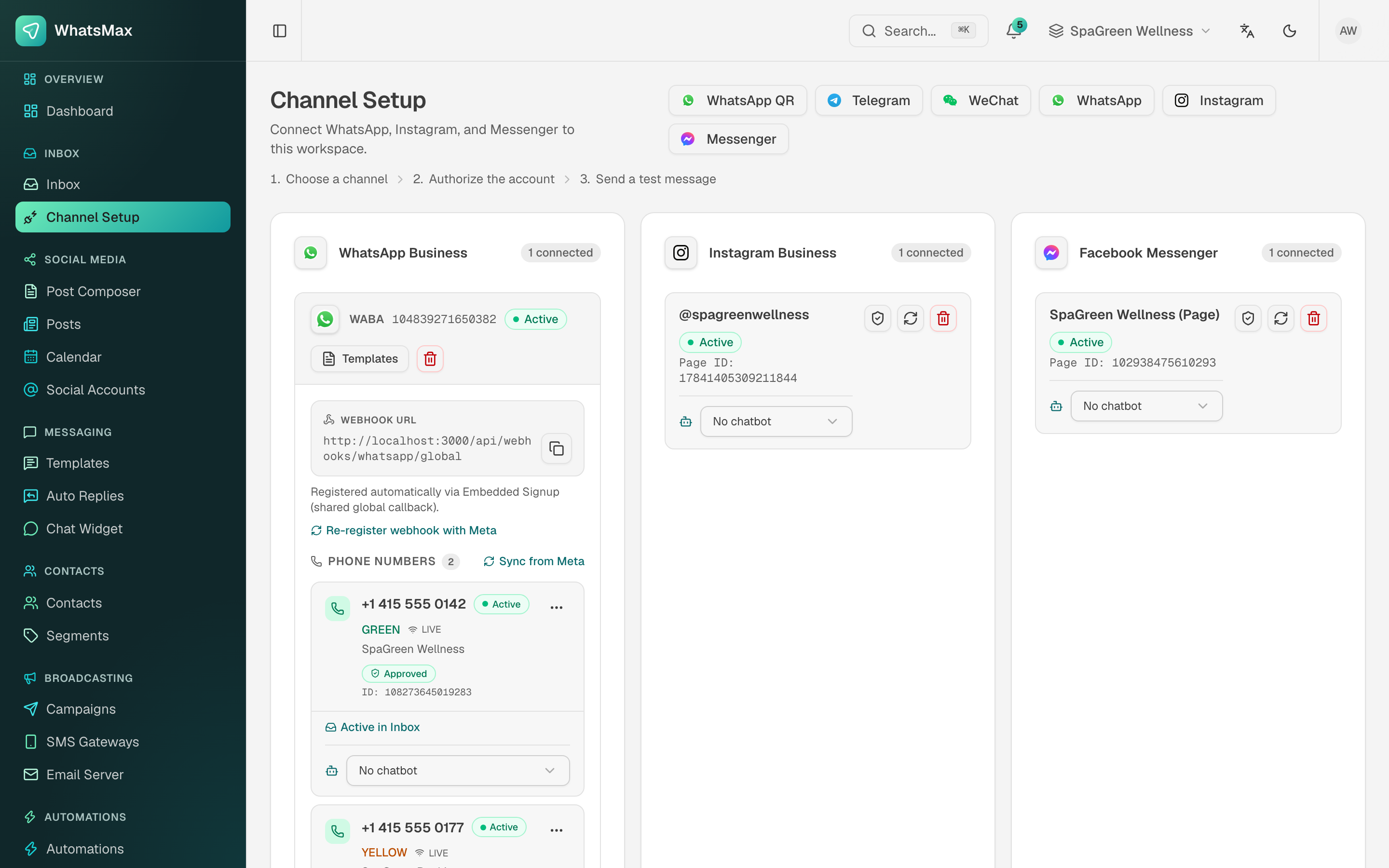 Channel setup — each workspace connects its own channels.
Two connection modes are supported:
- Embedded signup (recommended) — a Meta-hosted popup walks the user through business verification and number registration, then WhatsMax stores the resulting credentials automatically. Requires the platform admin to configure the Meta app for embedded signup in Admin → Integrations.
- Manual credentials — paste the Phone number ID, WABA ID and permanent token directly.
3. Configure the webhook
In the Meta app dashboard under WhatsApp → Configuration → Webhook:
| Field | Value |
|---|---|
| Callback URL | https://your-domain/api/webhooks/whatsapp/{token} — WhatsMax shows the exact per-channel URL (including the token) on the channel setup page. |
| Verify token | Shown next to the callback URL on the same page. |
| Webhook fields | Subscribe to messages (required) and message_template_status_update. |
Click Verify and save. Meta immediately calls the URL — if verification fails, re-check HTTPS and that the URL was copied exactly.
4. Test the channel
- Send a WhatsApp message from your personal phone to the connected business number.
- It should appear in Inbox within seconds.
- Reply from the inbox — the reply must arrive on your phone.
Message templates
Outbound marketing messages (campaigns, messages outside the 24-hour service window) require Meta-approved templates. Manage them in Messaging → Templates: create the template in WhatsMax, submit it for approval, and its status updates automatically via the message_template_status_update webhook.
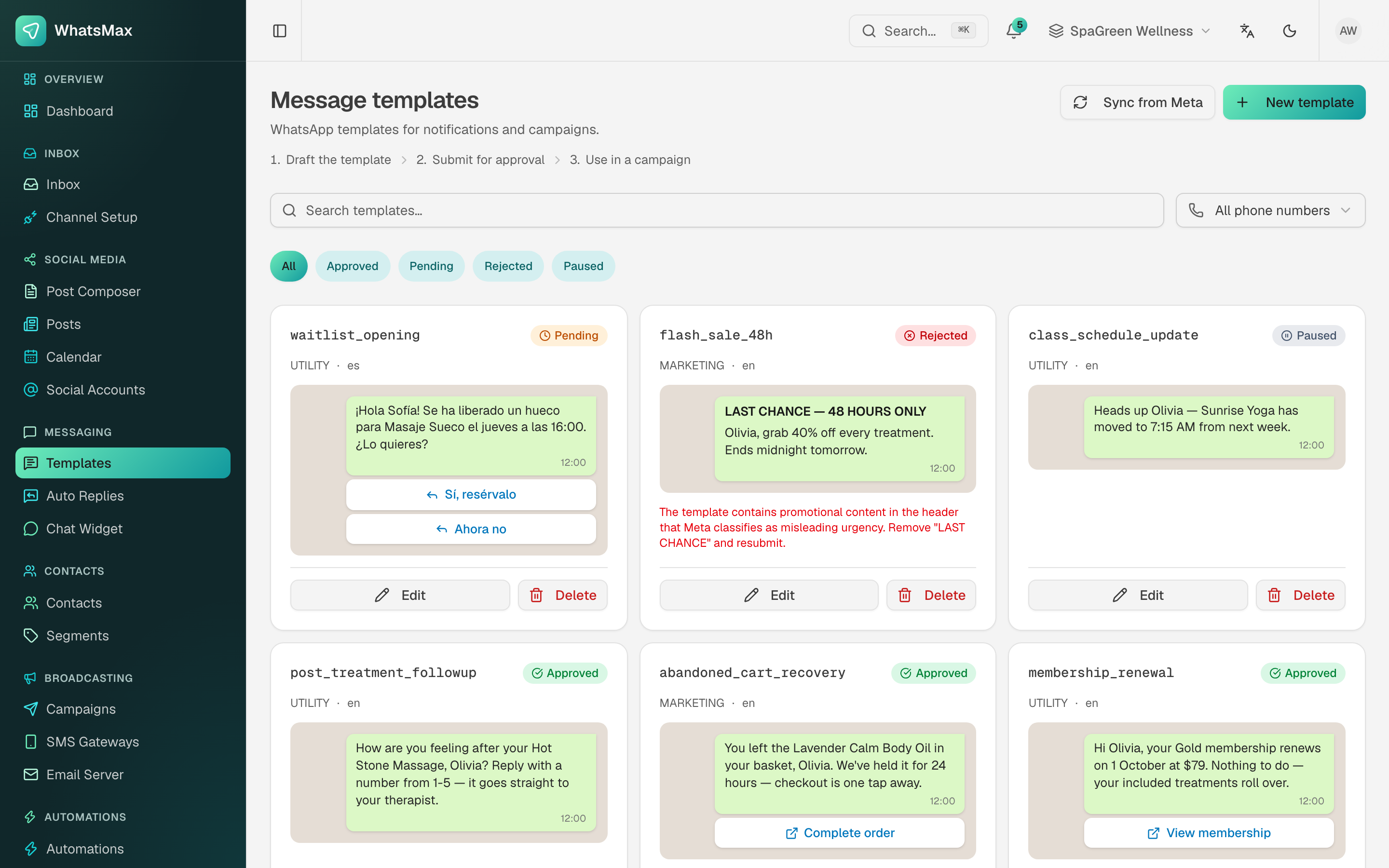 Template management with live approval status.
The 24-hour rule (important for your users)
WhatsApp allows free-form replies only within 24 hours of the customer's last message. Outside that window, only approved template messages can be sent. WhatsMax enforces this automatically in the inbox and campaigns.
Troubleshooting
| Symptom | Likely cause |
|---|---|
| Webhook verification fails | URL not HTTPS, token mismatch, or Nginx not proxying /api/webhooks/*. |
| Inbound messages don't appear | Webhook fields not subscribed, or worker process not running. |
| Sends fail with auth errors | Token expired (use a permanent System User token, not a temporary one). |
| Template rejected | Meta content policy — adjust wording; see the rejection reason shown on the template. |