
SMS Gateways & Email Servers
Campaigns can go out over three transports: WhatsApp, SMS and email. SMS gateways and campaign email servers are configured per workspace by your users.
SMS gateways
Workspaces add gateways under Broadcasting → SMS Gateways. Multiple gateways can coexist; campaigns pick which one to send through.
Supported gateway types include Twilio, Vonage (Nexmo), Plivo, AWS SNS and generic HTTP gateways — the available drivers are listed in the "Add gateway" dialog.
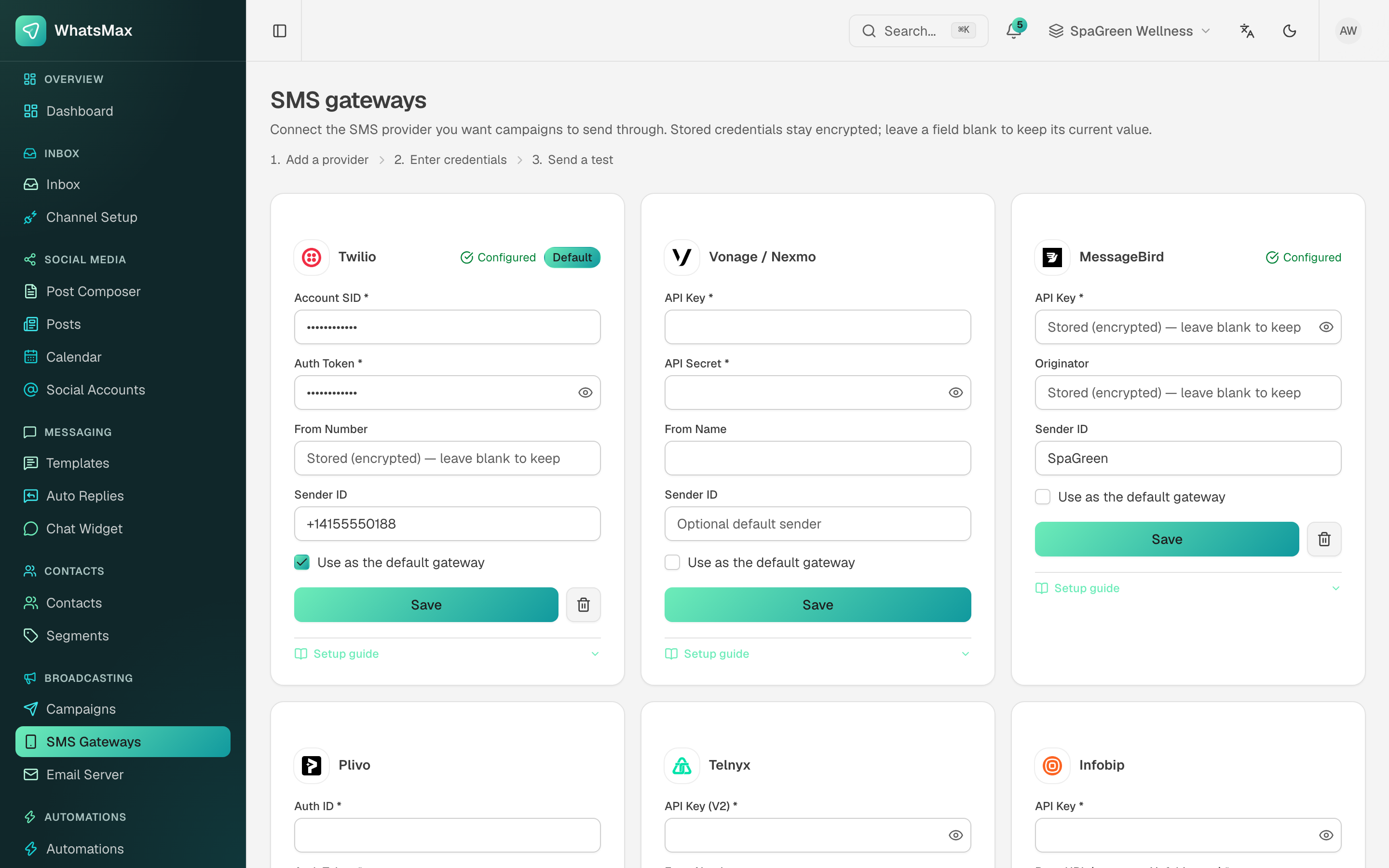 Per-workspace SMS gateway configuration.
Twilio example
- In the Twilio console copy the Account SID and Auth token, and buy/verify a sending number.
- Broadcasting → SMS Gateways → Add, choose Twilio, paste SID, token and the sender number.
- Use the test-send action with your own phone number before launching a campaign.
Delivery reports
Gateways that push delivery receipts can be pointed at:
https://your-domain/api/webhooks/sms/{provider}
The exact URL for each configured gateway is shown on its card. With receipts wired up, campaign reports show per-message delivered/failed status.
Campaign email servers
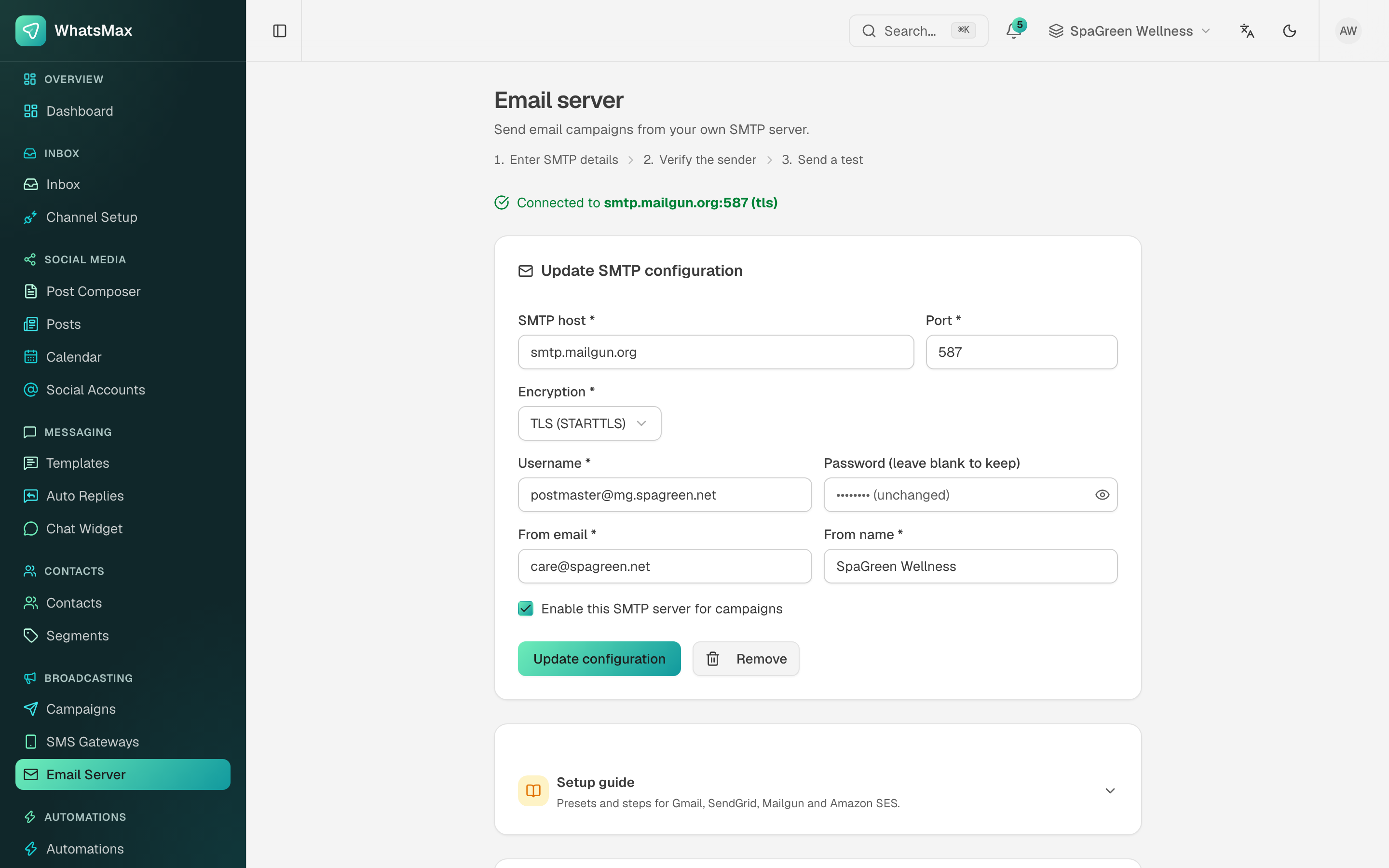 Per-workspace campaign email server.
Workspaces configure their own SMTP servers under Broadcasting → Email Server — sender identity, host, port, credentials. Campaign emails send through the workspace's server, so each customer's deliverability and rate limits are their own.
Platform email vs campaign email
Don't confuse the two:
- Platform transactional email (password resets, invites, tickets) uses the global SMTP settings in
.env— see Configuration → Mail. - Campaign email uses the per-workspace email server described here.
Deliverability checklist for your users
- Use a dedicated sending domain with SPF, DKIM and DMARC records.
- Warm up new domains — start with small segments.
- Keep contact lists opt-in; high bounce rates get SMTP accounts suspended.
Sending happens in the worker
All SMS and email campaign sending is queued and executed by the worker process with rate limiting. If campaigns stay "queued" forever, the worker isn't running — see Troubleshooting.