
AI Providers
AI powers chatbots, inbox auto-replies, knowledge-base answers (RAG) and the AI automation generator. WhatsMax supports three LLM providers:
| Provider | Models | Get a key at |
|---|---|---|
| OpenAI | GPT-4o family and newer | platform.openai.com |
| Anthropic | Claude family | console.anthropic.com |
| Gemini family | aistudio.google.com |
Where keys are configured
There are two levels:
- Platform level (you) — Admin → Configuration → AI Dashboard. Platform-wide provider keys, default models and usage monitoring across all workspaces. You can also set a fallback key in
.env(AI_PROVIDER,OPENAI_API_KEY,OPENAI_MODEL— see Configuration). - Workspace level (your customers) — AI → Providers inside the app. Workspaces can bring their own keys, so their usage bills to their own provider account.
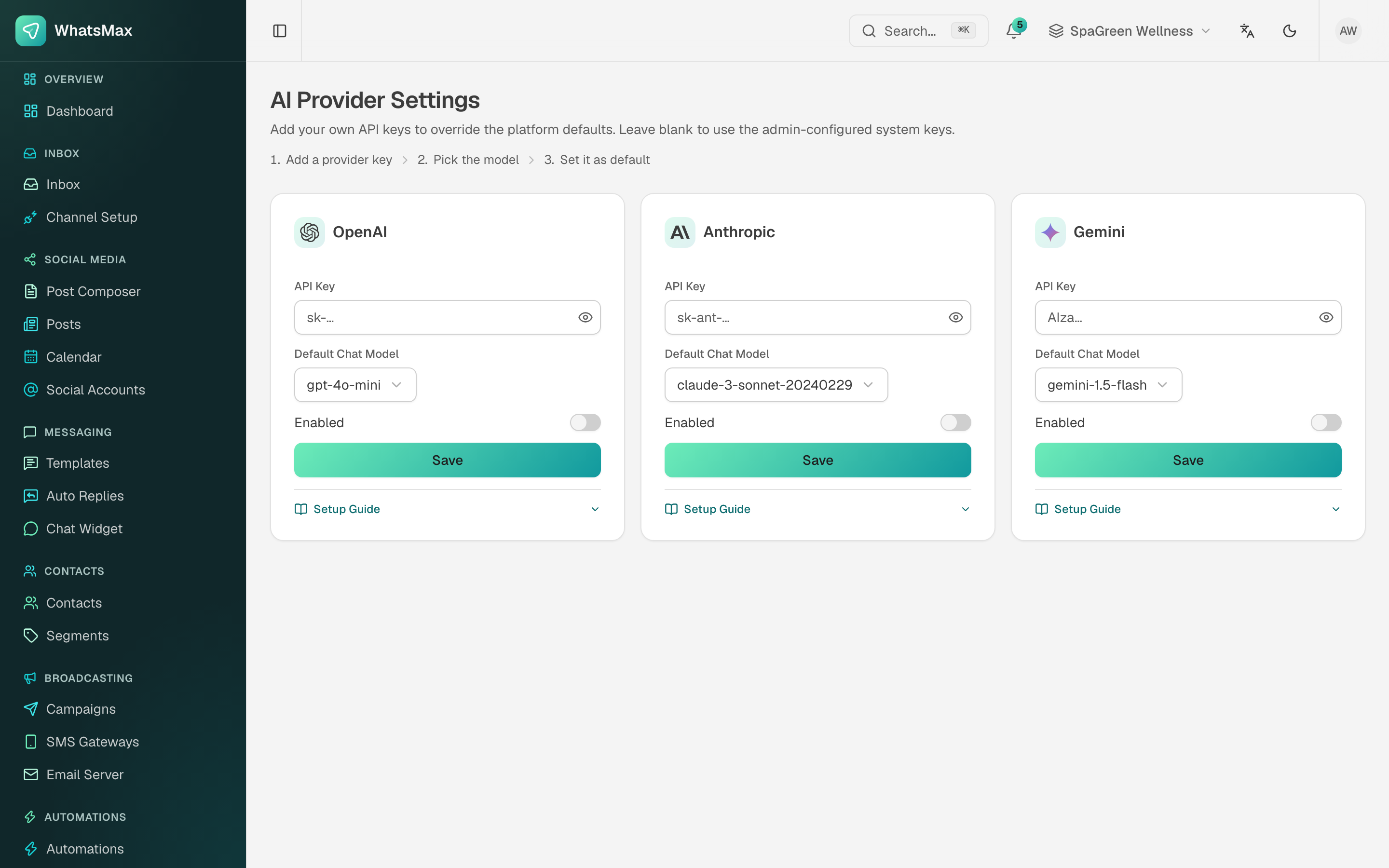 Workspace-level provider configuration.
All keys are encrypted at rest with APP_ENCRYPTION_KEY.
Setting up a provider (example: OpenAI)
- Create an API key on the provider console.
- Enter it in Admin → AI Dashboard (platform-wide) or AI → Providers (single workspace).
- Pick the default model — smaller models (e.g.
gpt-4o-mini) are dramatically cheaper and fine for most support chatbots. - Save, then use the built-in test action to confirm the key works.
What uses AI, and when
| Feature | Runs where | Notes |
|---|---|---|
| AI chatbots | Worker process | Conversation replies via the chatbot builder. |
| Knowledge bases (RAG) | Worker process | Documents are chunked and embedded on upload; bots retrieve relevant chunks per question. |
| Inbox auto-reply | Worker process | Optional AI suggestions/automatic replies in conversations. |
| Automation generator | Web process | "Describe the automation" → builder graph. |
Because AI jobs run in the worker, a stopped worker looks like "the bot never answers" — check pm2 logs whatsmax-worker first.
Cost control
- Admin → AI Dashboard shows token usage per workspace; Reports → AI Usage shows it to each workspace.
- Plan limits let you cap AI usage per subscription tier (configure limits on the plan in Admin → Plans).
- Prefer small/cheap models as defaults; let power users pick larger ones per chatbot.