
E-commerce Integrations
Workspaces can connect Shopify, WooCommerce and BigCommerce stores. Once connected, WhatsMax syncs orders and products, links orders to contacts, and can recover abandoned carts through WhatsApp/SMS/email automations.
Connection happens in the client app under E-commerce → Stores → Connect Store.
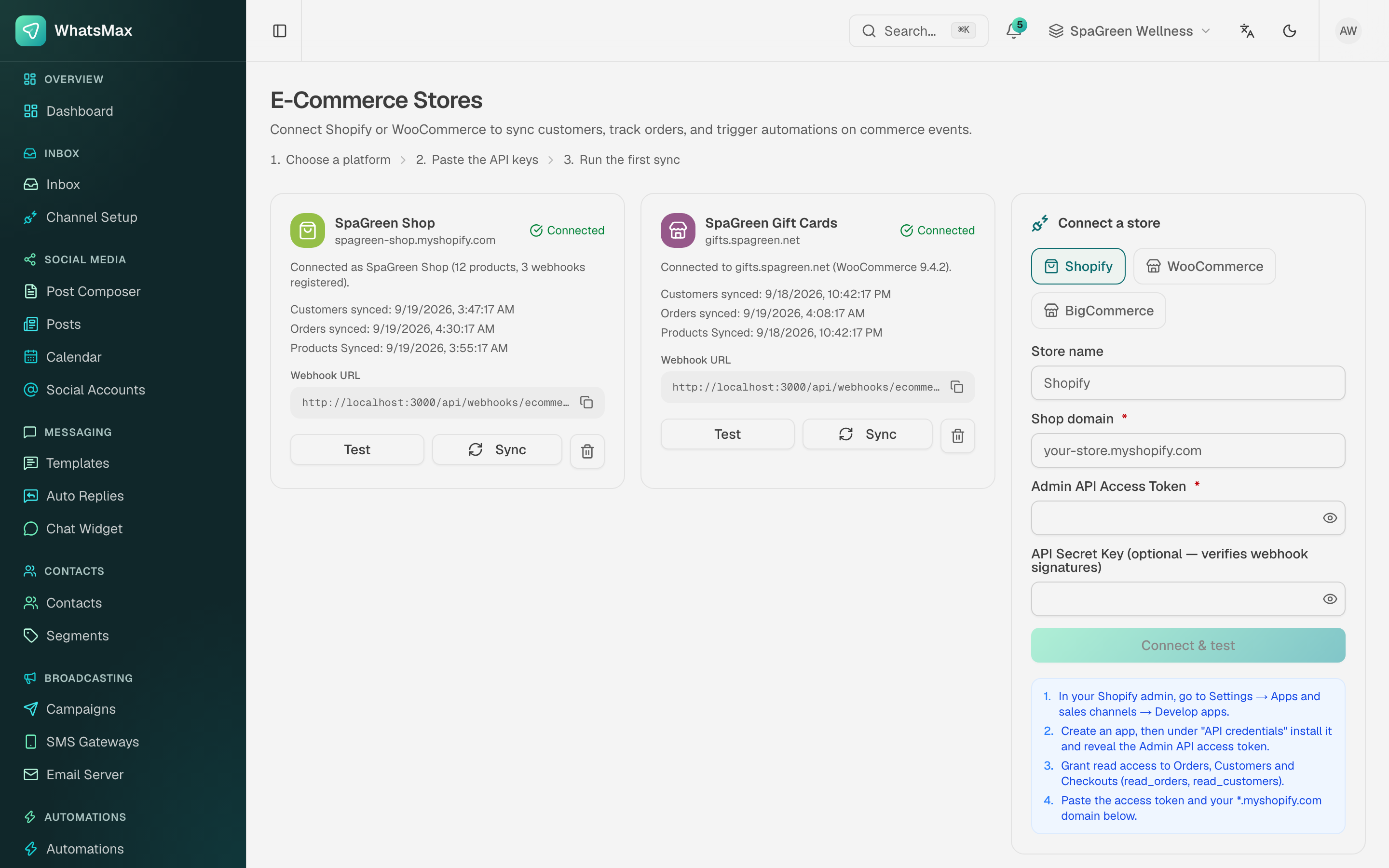 Connected stores in a workspace.
Shopify
- In the Shopify admin go to Settings → Apps and sales channels → Develop apps and create a custom app.
- Grant Admin API scopes:
read_orders,read_products,read_customers,read_checkouts. - Install the app and copy the Admin API access token and your store domain (
your-store.myshopify.com). - In WhatsMax: E-commerce → Stores → Connect → Shopify, paste the domain and token.
- WhatsMax registers webhooks automatically; if your store blocks that, add them manually pointing to the store's webhook URL shown on the store card:
https://your-domain/api/webhooks/ecommerce/shopify/{store}
WooCommerce
- In WordPress admin: WooCommerce → Settings → Advanced → REST API → Add key (Read permissions).
- Copy the Consumer key and Consumer secret.
- In WhatsMax connect with the store URL (
https://shop.example.com) plus both keys. - For real-time updates add a webhook in WooCommerce → Settings → Advanced → Webhooks for order events, pointing to:
https://your-domain/api/webhooks/ecommerce/woo/{store}
BigCommerce
- In the BigCommerce control panel: Settings → API accounts → Create V2/V3 API token with Orders/Products/Customers read scopes.
- Copy the Store hash, Access token and Client ID.
- Connect in WhatsMax with those values; webhook URL pattern:
https://your-domain/api/webhooks/ecommerce/bigcommerce/{store}
What you get after connecting
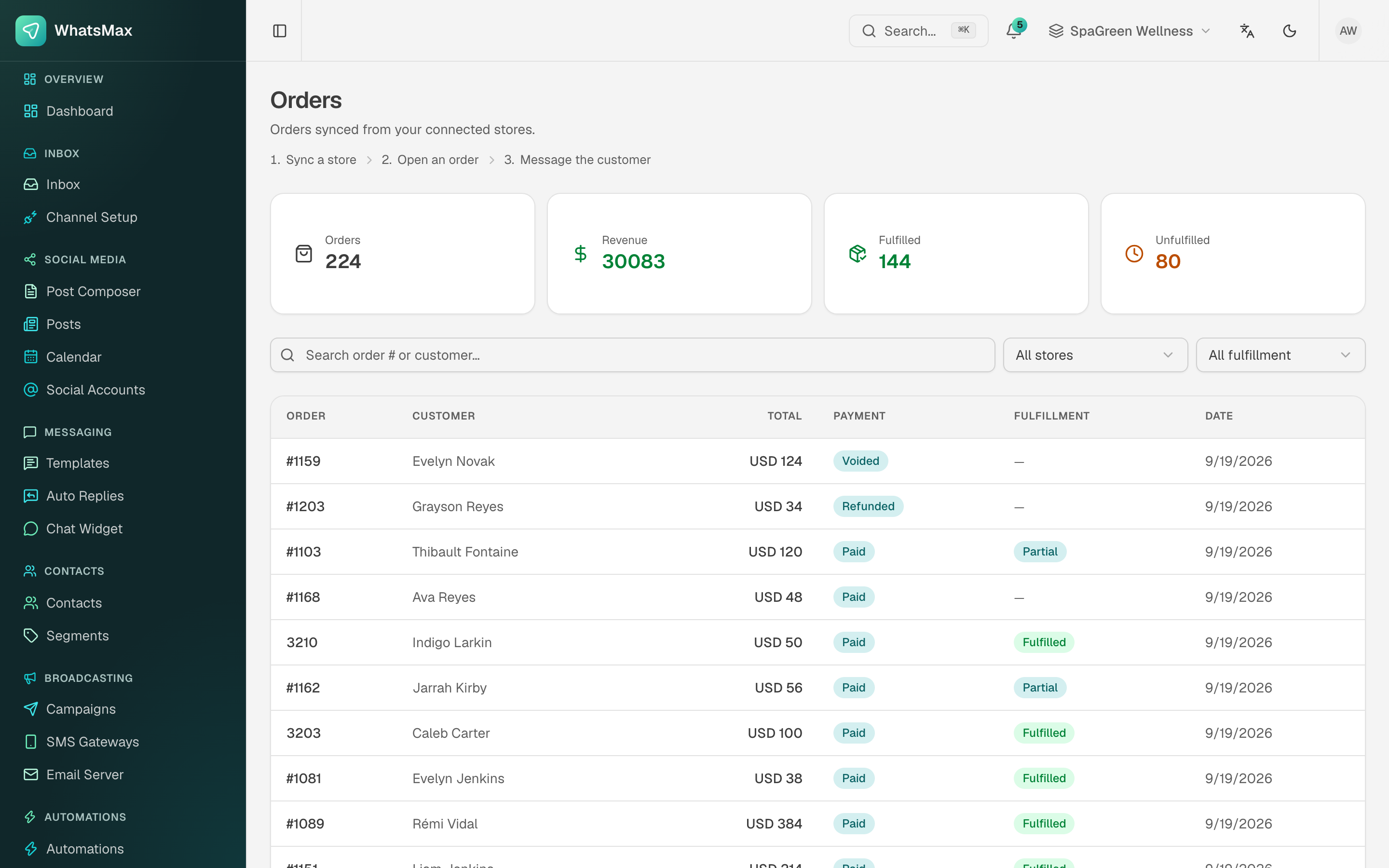 Synced orders, matched to contacts.
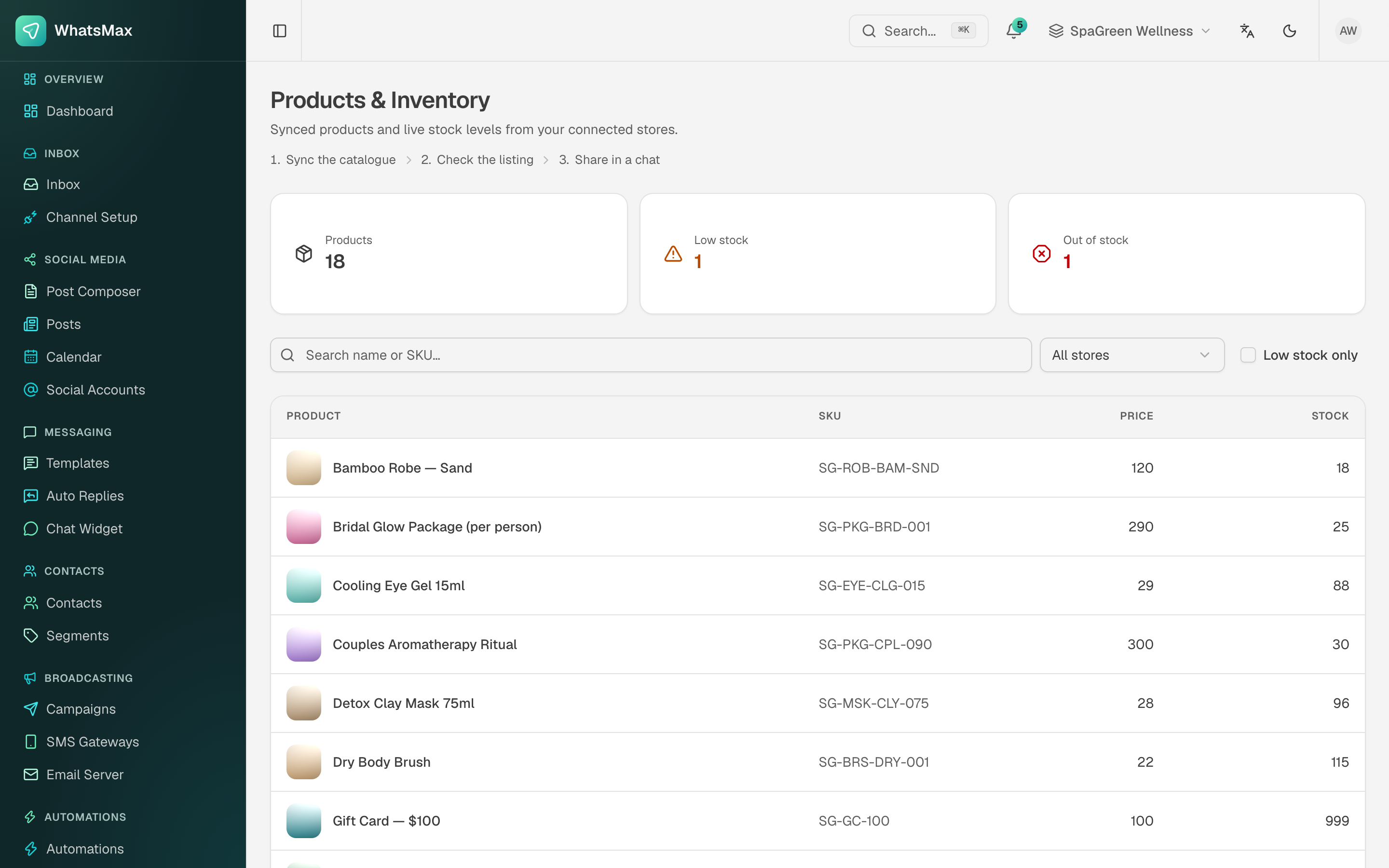 The synced product catalog.
- E-commerce → Orders — synced orders with status, matched to contacts by email/phone.
- E-commerce → Products — synced catalog, usable in messages and campaigns.
- Abandoned carts — recoverable carts detected from checkout events; pair with an automation to send recovery messages automatically.
- Automation triggers — order created/updated events can start automations (order confirmations, shipping updates, review requests).
Store URLs are validated
For security, store connections are validated against SSRF — internal/private URLs are rejected. Stores must be reachable over public HTTPS.