
Telegram
Telegram is the quickest channel to connect: no business verification, no app review, no platform credentials for the operator to configure. You create a bot in the Telegram app, paste its token, and messages people send that bot arrive in your inbox.
What the channel can do
| Telegram | |
|---|---|
| Setup | Paste a bot token |
| Approval needed | None |
| 24-hour window | Does not apply |
| Message templates | Not available (and not needed) |
| Media | Photos, video, audio, voice notes, files, stickers |
| Location and shared contacts | Received |
| Group chats | Supported |
| Campaigns | Not supported — see Limits |
| AI chatbot | Supported |
Requirements
- A public HTTPS
APP_URL. Telegram refuses to deliver to plain HTTP or to an address it cannot reach, so this channel does not work on a local install. - A running queue worker — inbound messages are processed on the
inboundqueue. See Production deployment.
Creating a bot
- Open Telegram and start a chat with @BotFather.
- Send
/newbot. - Give the bot a display name, then a username ending in
bot(for exampleacme_support_bot). - BotFather replies with a token that looks like
123456789:AAHdqTcvCH1vGWJxfSeofSAs0K5PALDsaw. Copy the whole line.
Optional, but worth doing while you are there:
/setdescription— the text people see before they press Start./setuserpic— your logo./setprivacy→ Disable, if you want the bot to read every message in a group rather than only ones that mention it.
Connecting it
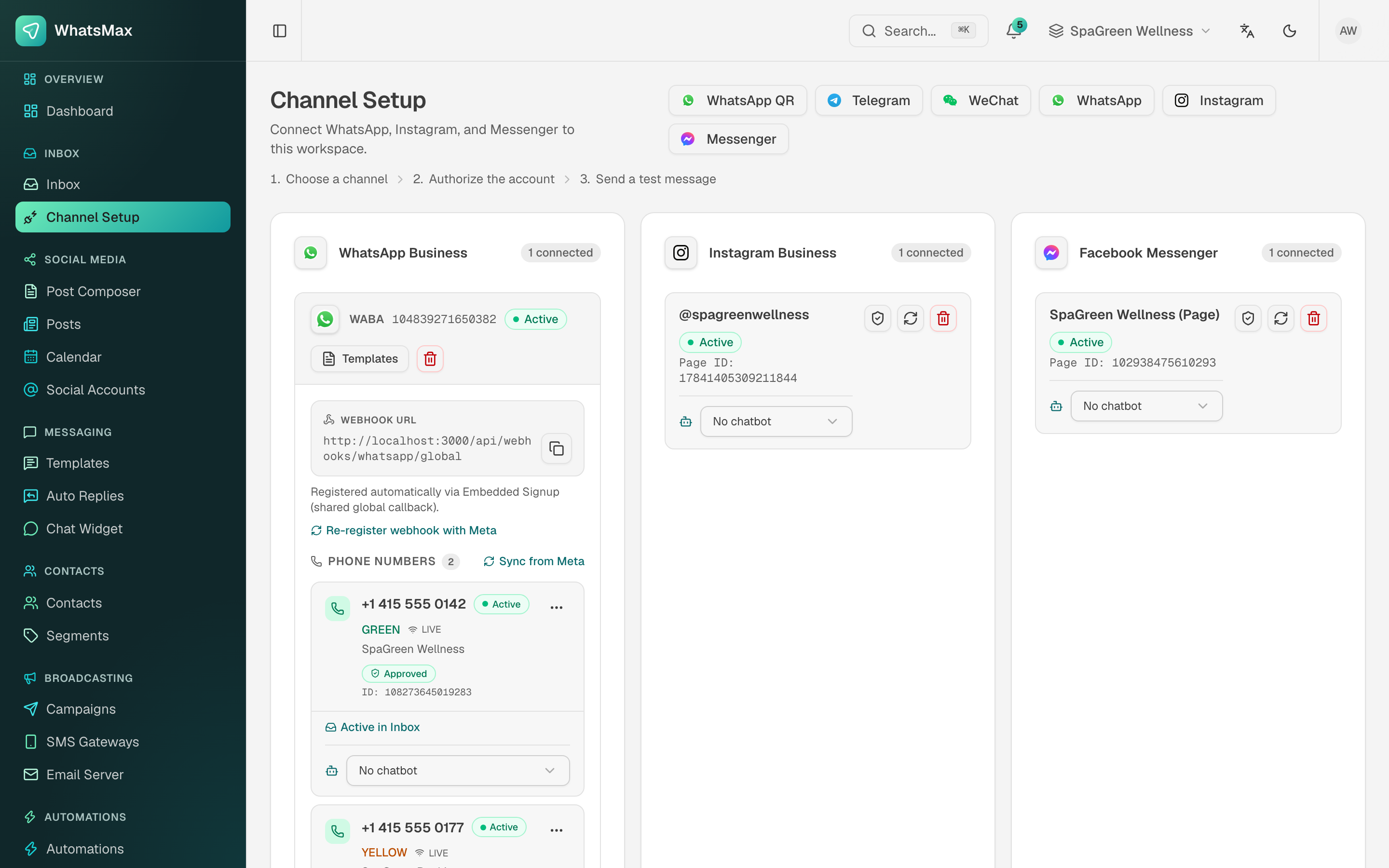 Channel Setup — every channel a workspace can connect lives on this page.
- Inbox → Channel Setup → Telegram.
- Paste the token and press Connect.
- The card shows the bot's
@handleand Active.
Behind the scenes the token is validated against Telegram, stored encrypted, and a private callback URL is registered for that bot. You never need to copy a webhook URL anywhere.
One bot, one destination
Telegram delivers a bot's messages to exactly one place. Connecting a bot here takes it over from anything else that was using it, and the same bot cannot be connected to two workspaces. Create a separate bot per workspace.
Sending and receiving
Conversations appear in the inbox like any other channel: a customer who messages the bot becomes a contact, their thread stays on one conversation, and agents reply from the same composer they use for WhatsApp.
Media works in both directions. Incoming photos and files are downloaded and re-hosted on your own storage, so they keep working after Telegram's temporary links expire.
Adding an AI chatbot
- Create and enable a chatbot under AI → Chatbots.
- On the Telegram card in Channel Setup, pick it from the chatbot dropdown.
From then on the bot answers inbound messages by itself, using the same knowledge base, handover phrases and away rules as every other channel. A conversation is handed to a human when the customer asks for one, or when an agent replies.
If the chatbot dropdown is empty, no enabled chatbot exists yet.
Limits
- A bot cannot start a conversation. Telegram only lets a bot message someone who has messaged it first, which is why Telegram is not available as a campaign channel. Automations can reply into an existing thread.
- No message templates. Telegram has no equivalent, and needs none — there is no 24-hour window to reopen.
- File sizes. Telegram accepts photos up to 10 MB and other files up to 50 MB.
Troubleshooting
Use the shield button on the Telegram card to run a check. It reports the token, where Telegram is currently delivering, the queue worker, and when the last inbound message arrived.
"Telegram rejected that bot token" The token was regenerated or revoked in BotFather. Get the current one with /mybots → your bot → API Token, and reconnect.
"Telegram is delivering this bot's messages to a different URL" Another install or tool has claimed the bot. Press the refresh button on the card to claim it back — or use a different bot, if the other one is meant to keep it.
"Telegram's last delivery attempt failed" Telegram reached your server and got an error back. Usually the certificate, a firewall, or APP_URL not matching the address the site is actually served on.
Messages are connected but never arrive Check that APP_URL is HTTPS and publicly reachable, and that a queue worker is running. Both appear in the health check.